
20Chapter 20 of 51 · 3 min read
ROS 2 Parameters
In the previous chapter, we created a parameter node with two configurable parameters:
simple_int_param→ default value23simple_string_param→ default value"lavitra"
In this chapter, we will interact with those parameters directly from the ROS 2 command line.
We will learn how to:
- Start the parameter node
- List available parameters
- Read a parameter’s value
- Start a node with a different parameter value
- Change a parameter while the node is running
- Observe the parameter-change callback
Source the workspace
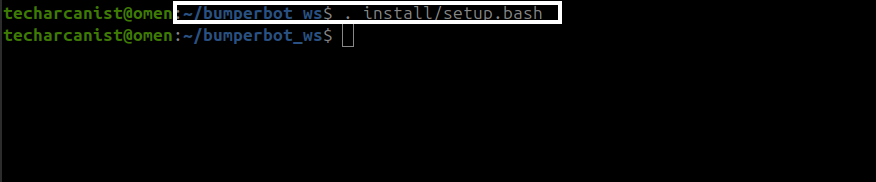
Before running our ROS 2 node, we need to source the workspace.
Open a terminal and go to your workspace:
cd bumperbot_wsThen source the workspace:
. install/setup.bash Run the Parameter Node
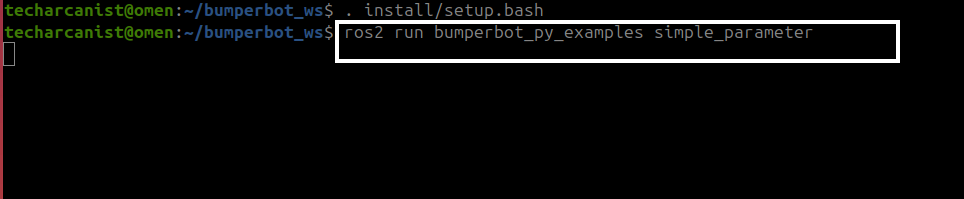
Now we can start the parameter node that we created in the previous chapter.
For the Python implementation, run:
ros2 run bumperbot_py_examples simple_parameterThe command follows this structure:
ros2 run <package_name> <executable>In our case:
ros2 run
   │
   ├── bumperbot_py_examples
   │          ↓
   │      package name
   │
   └── simple_parameter
              ↓
          executable
So:
ros2 run bumperbot_py_examples simple_parameterstarts the simple_parameter node from the bumperbot_py_examples package.
Keep this terminal running. We will use another terminal to interact with the parameters.
List the Parameters
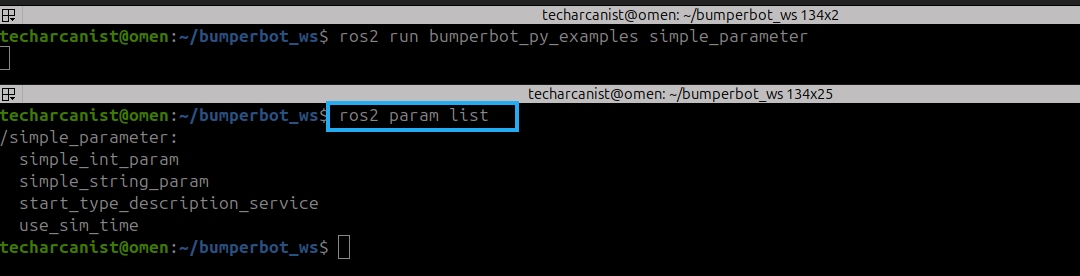
Open a new terminal. ctrl+shift+O
Source the workspace again:
cd bumperbot_ws
. install/setup.bash
Now run:
ros2 param listIt shows the parameters available for the currently running ROS 2 nodes.
Read a Parameter’s Value

Now that we know the parameter exists, we can read its current value.
Use:
ros2 param get /simple_parameter simple_int_paramYou should see that the current value is 23
Understanding ros2 param get
Let’s break the command down:
ros2 param get /simple_parameter simple_int_paramros2 param get
│
├── /simple_parameter
│ ↓
│ Node
│
└── simple_int_param
↓
ParameterSo the command means:
Get the value of
simple_int_paramfrom the/simple_parameternode.
The general syntax is:
ros2 param get <node_name> <parameter_name>Start the Node With a Different Parameter Value
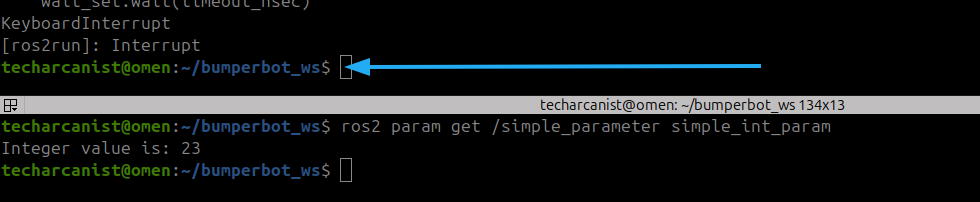
Press Ctrl+c to stop the running simple_parameter node.

Now start it again, but this time set simple_int_param to 30:
ros2 run bumperbot_py_examples simple_parameter --ros-args -p simple_int_param:=30Understanding --ros-args and -p
The command contains two important parts:
--ros-argsand:
-p simple_int_param:=30--ros-args
This tells ROS 2 that additional ROS-specific arguments are being provided.
-p
The -p option is used to provide a parameter value.
So:
-p simple_int_param:=30means:
Set
simple_int_paramto30when starting the node.
The complete command therefore means:
Start simple_parameter
        │
        ▼
Use ROS arguments
        │
        ▼
Set simple_int_param
        │
        ▼
30
Check the New Value

The node is now running again, but this time:
simple_int_param = 30We can verify it from another terminal.
Run:
ros2 param get /simple_parameter simple_int_paramRead the String Parameter

We can read it using:
ros2 param get /simple_parameter simple_string_paramThe command follows the same structure:
ros2 param get <node> <parameter>Change a Parameter While the Node Is Running
One of the most useful features of ROS 2 parameters is that we do not necessarily need to restart the node to change a parameter.
We can change a parameter while the node is already running.
For example, let’s change:
simple_string_paramfrom:
lavitrato:
tech_arcanistUse:
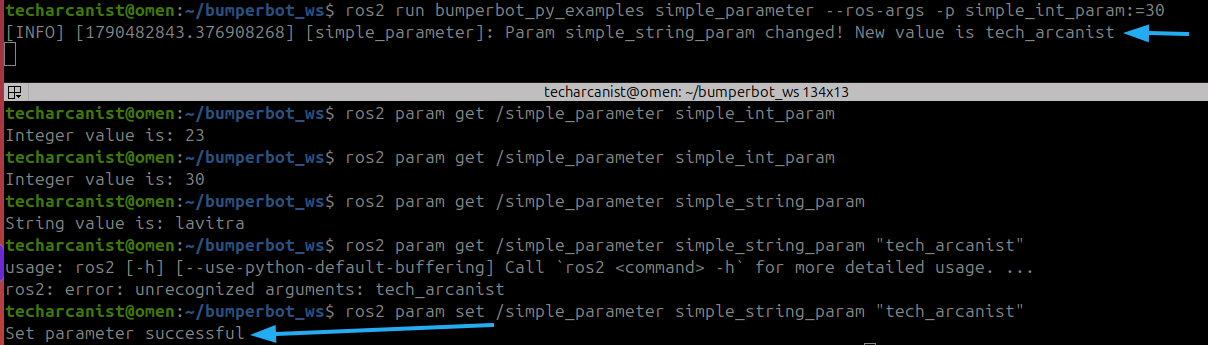
ros2 param set /simple_parameter simple_string_param "tech_arcanist"The general syntax is:
ros2 param set <node_name> <parameter_name> <new_value>Therefore, the running node prints a message similar to:
[INFO] [simple_parameter]:
Param simple_string_param changed!
New value is tech_arcanist