
02Chapter 2 of 51 · 1 min read
ROS 2 Jazzy Installation on Ubuntu (Step-by-Step)
Go to the official ROS 2 installation link or follow the steps below.
Step 1: Set Locale
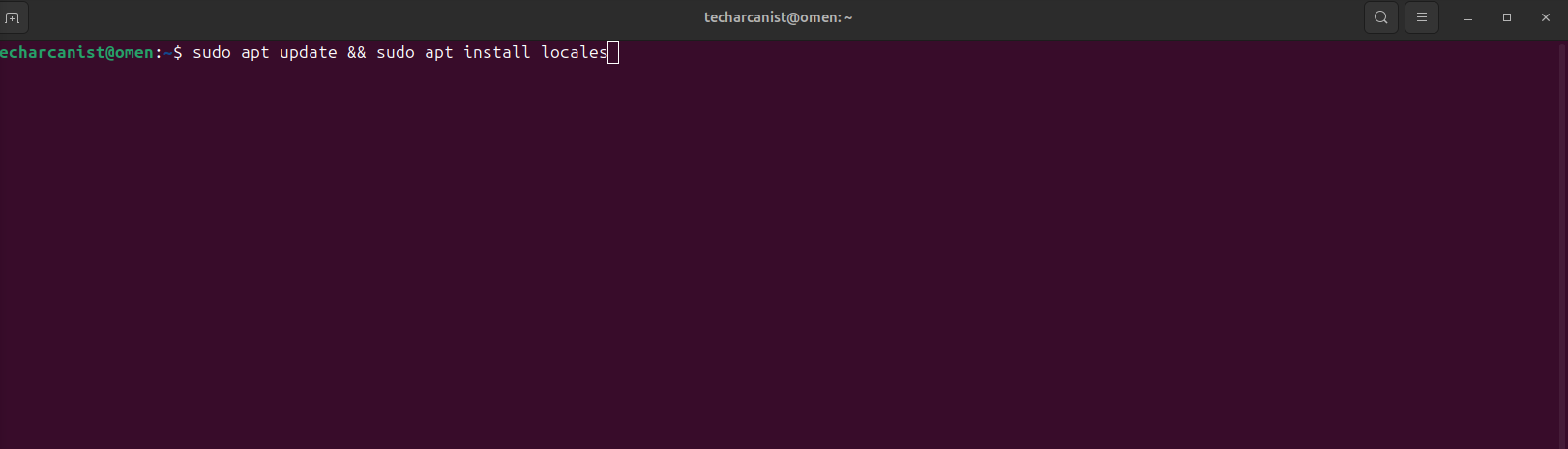
sudo apt update && sudo apt install locales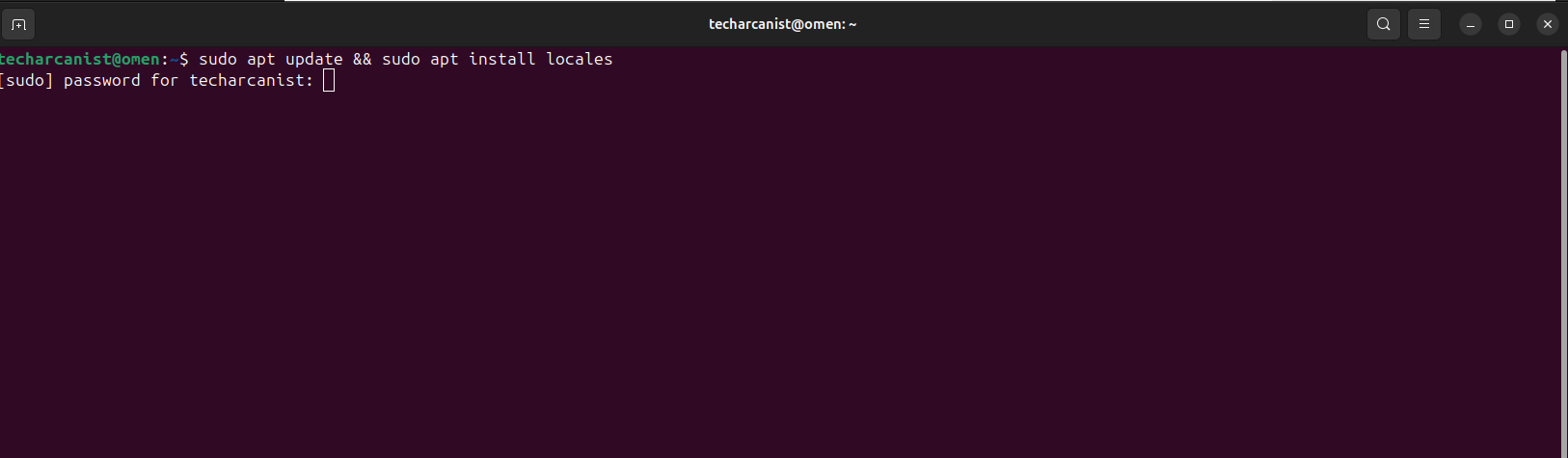
Enter your password.
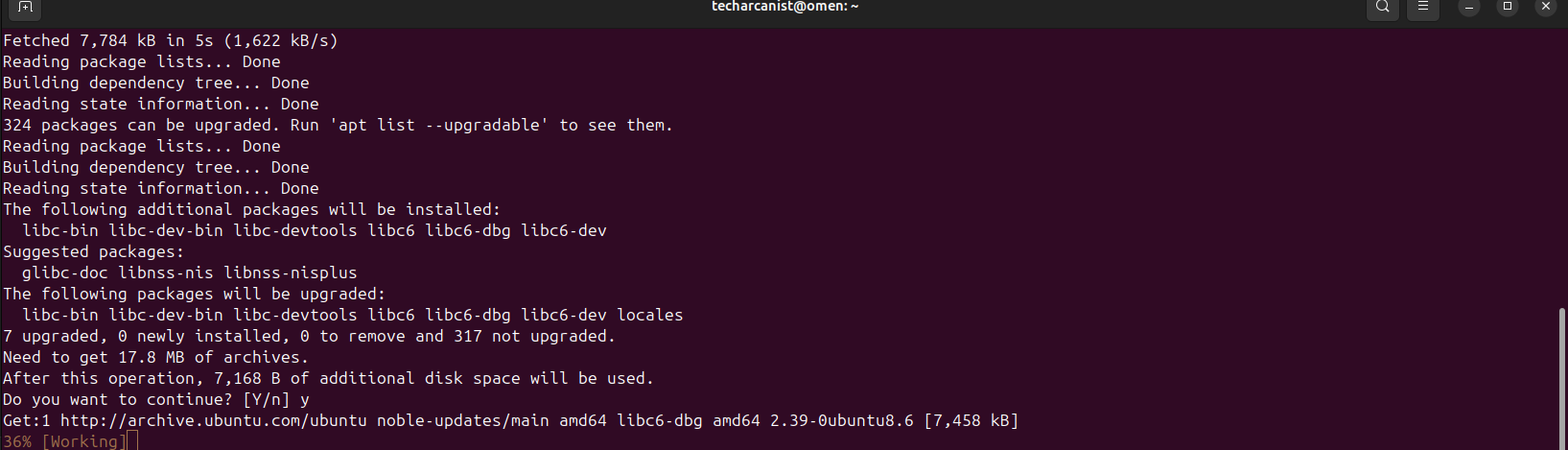
Press Y and then Enter when prompted.
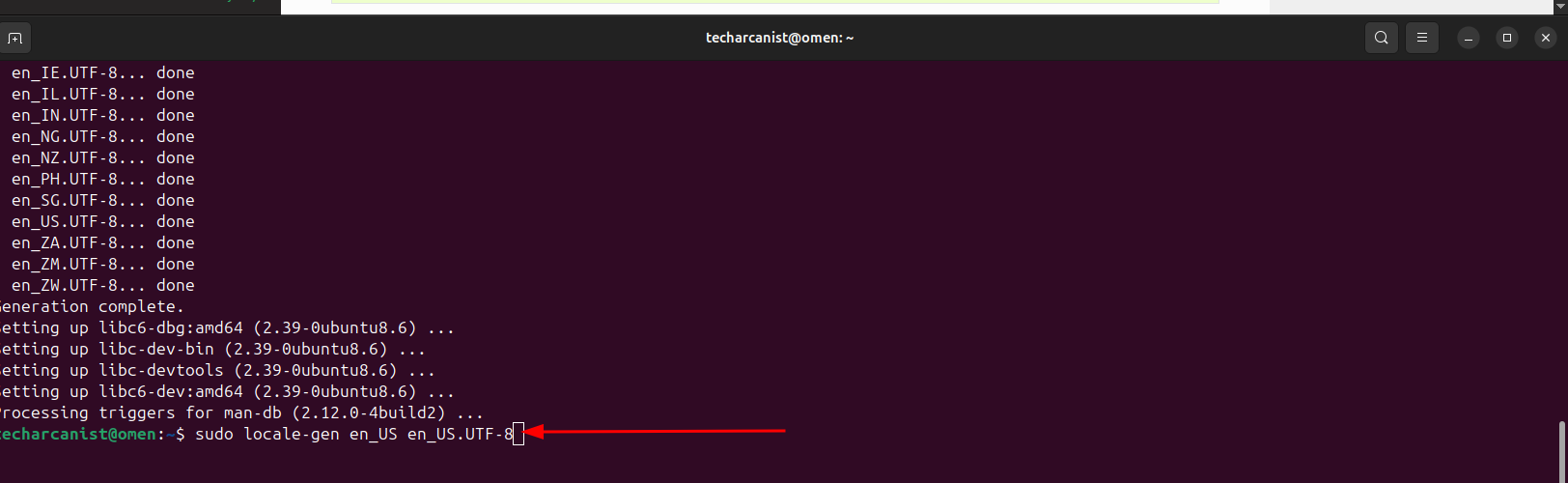
sudo locale-gen en_US en_US.UTF-8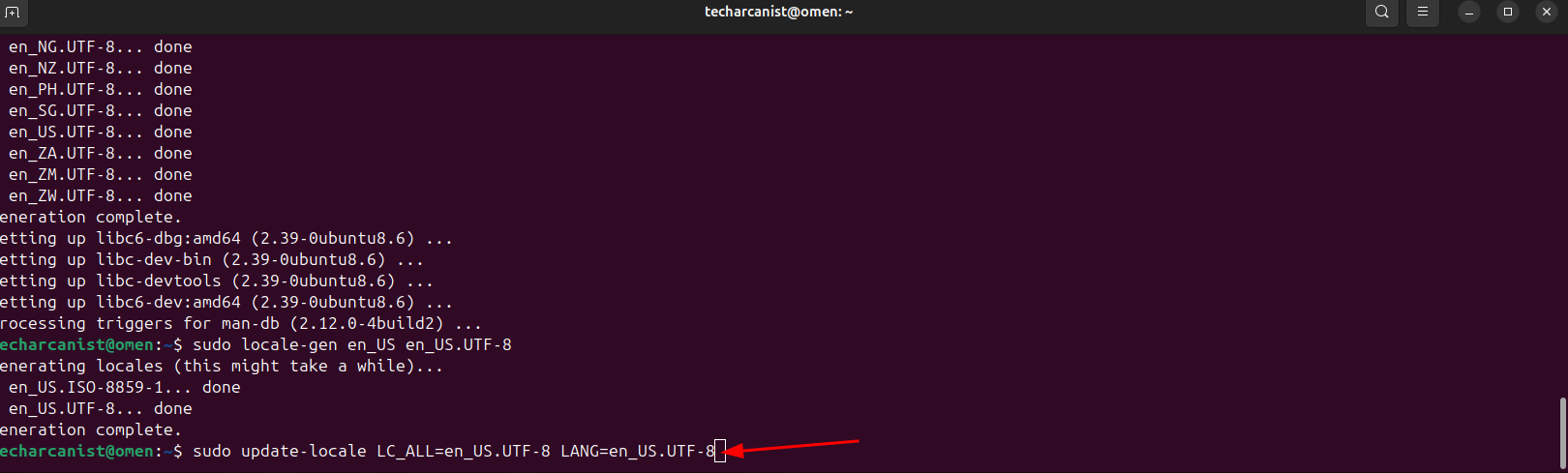
sudo update-locale LC_ALL=en_US.UTF-8 LANG=en_US.UTF-8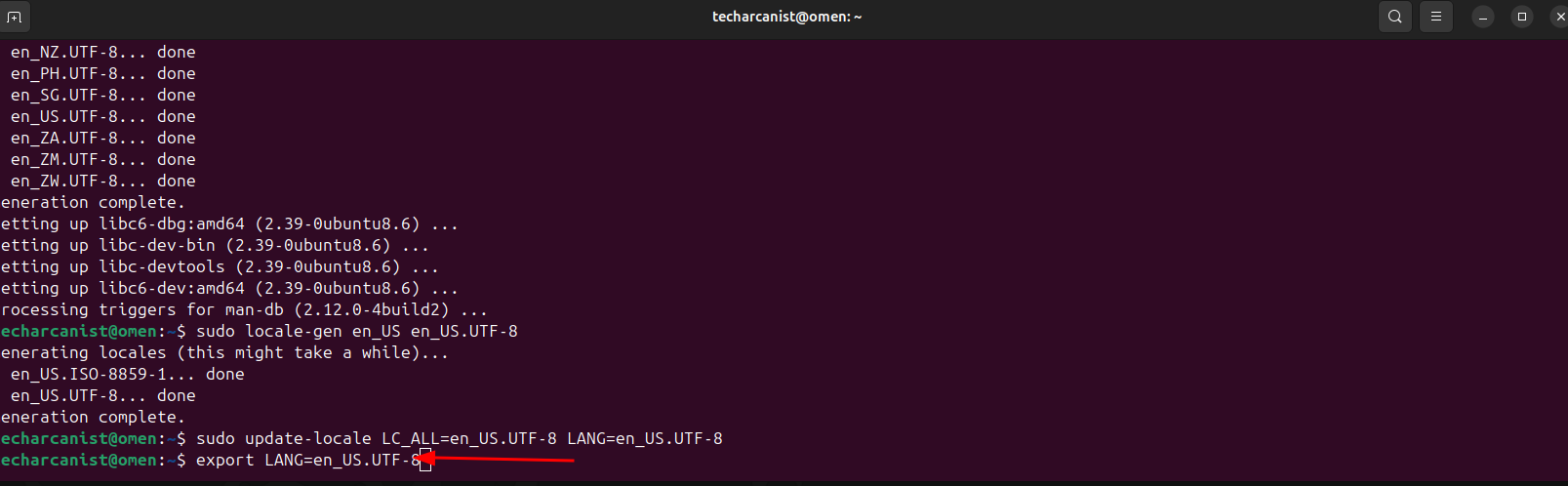
export LANG=en_US.UTF-8Locale setup is now complete.
Step 2: Enable Required Repositories
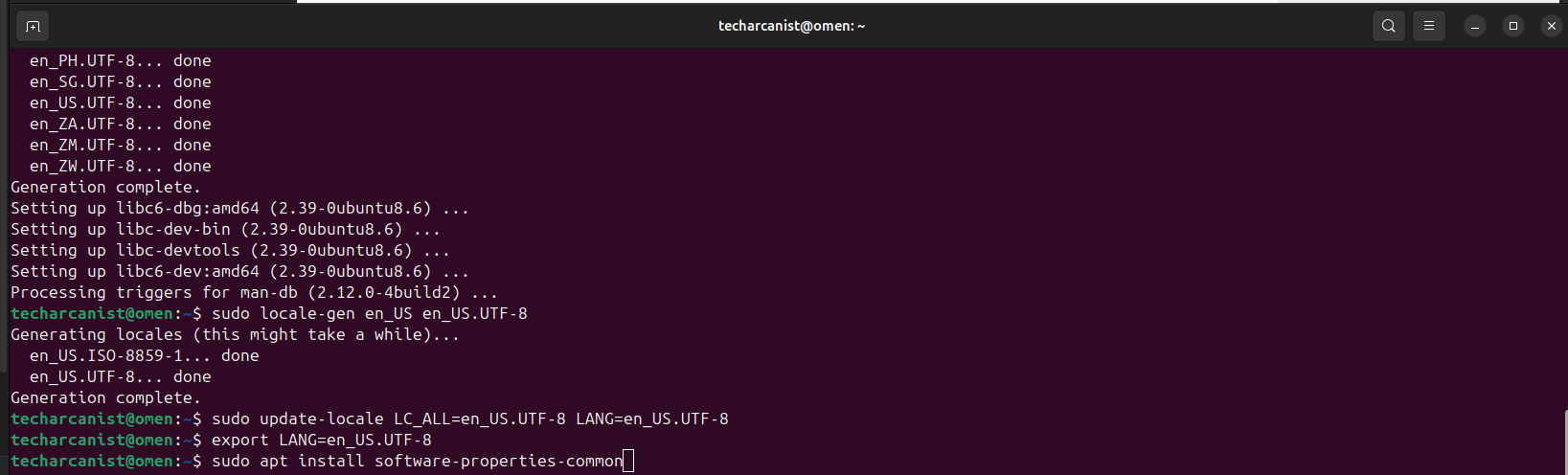
sudo apt install software-properties-commonGive authentication and press Y whenever asked.
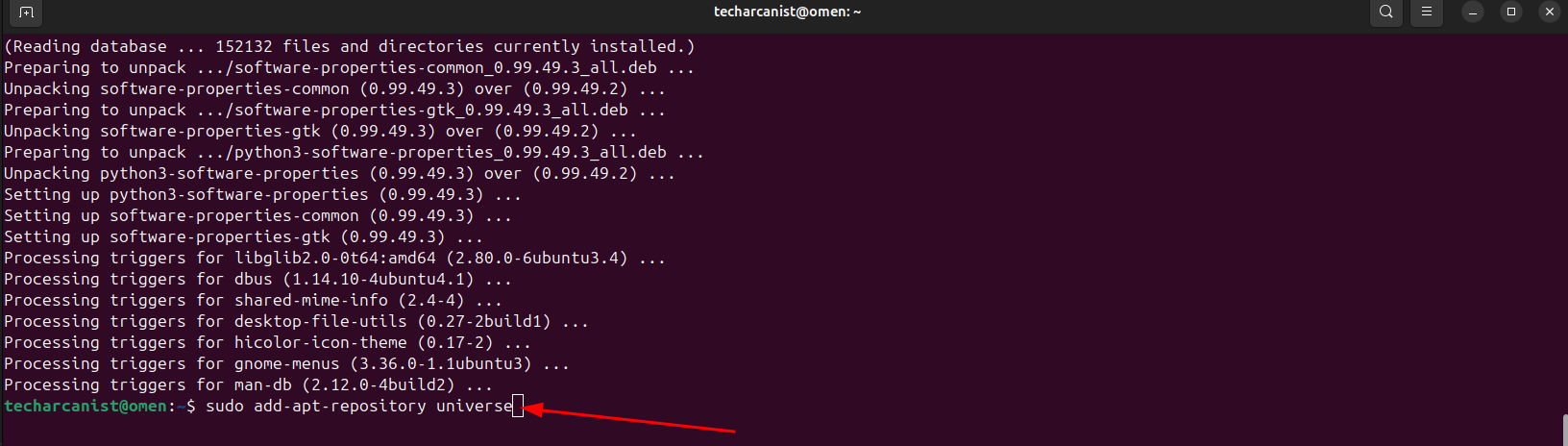
sudo add-apt-repository universe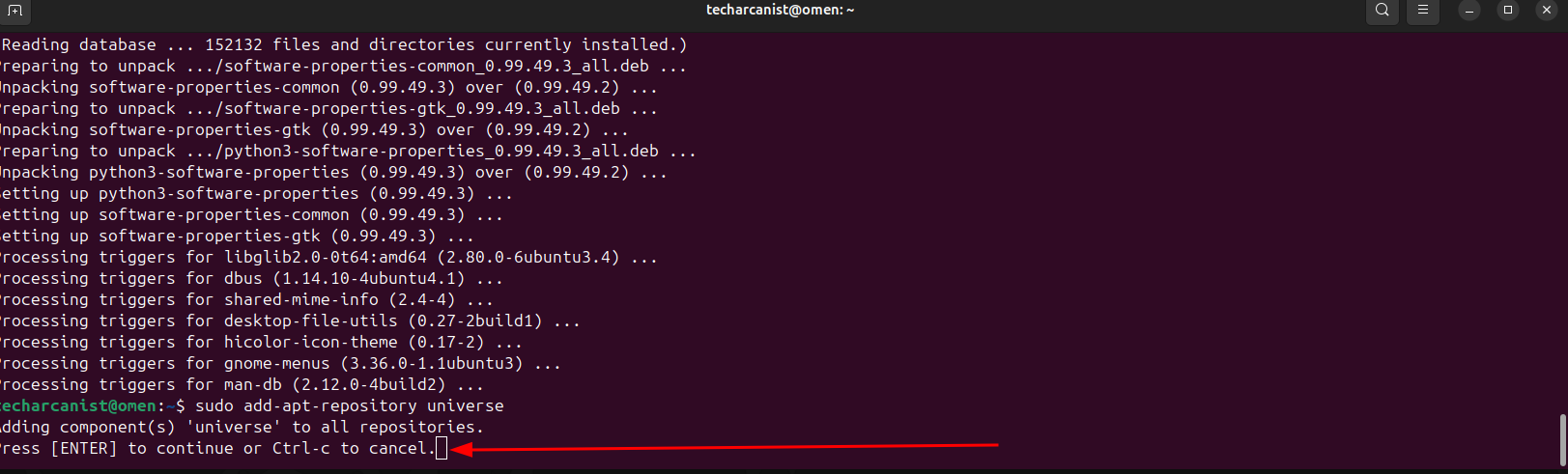
Press Enter to confirm.
Step 3: Add ROS 2 APT Source
Just keep pasting the following commands and give permission (press Y) whenever asked.
sudo apt update && sudo apt install curl -yexport ROS_APT_SOURCE_VERSION=$(curl -s https://api.github.com/repos/ros-infrastructure/ros-apt-source/releases/latest | grep -F "tag_name" | awk -F\" '{print $4}')curl -L -o /tmp/ros2-apt-source.deb "https://github.com/ros-infrastructure/ros-apt-source/releases/download/${ROS_APT_SOURCE_VERSION}/ros2-apt-source_${ROS_APT_SOURCE_VERSION}.$(. /etc/os-release && echo ${UBUNTU_CODENAME:-${VERSION_CODENAME}})_all.deb"sudo dpkg -i /tmp/ros2-apt-source.debStep 4: Install Development Tools
sudo apt update && sudo apt install ros-dev-toolsStep 5: Install ROS 2 Jazzy
sudo apt update sudo apt upgrade Then install ROS 2:
sudo apt install ros-jazzy-desktopStep 6: Set Up the Environment
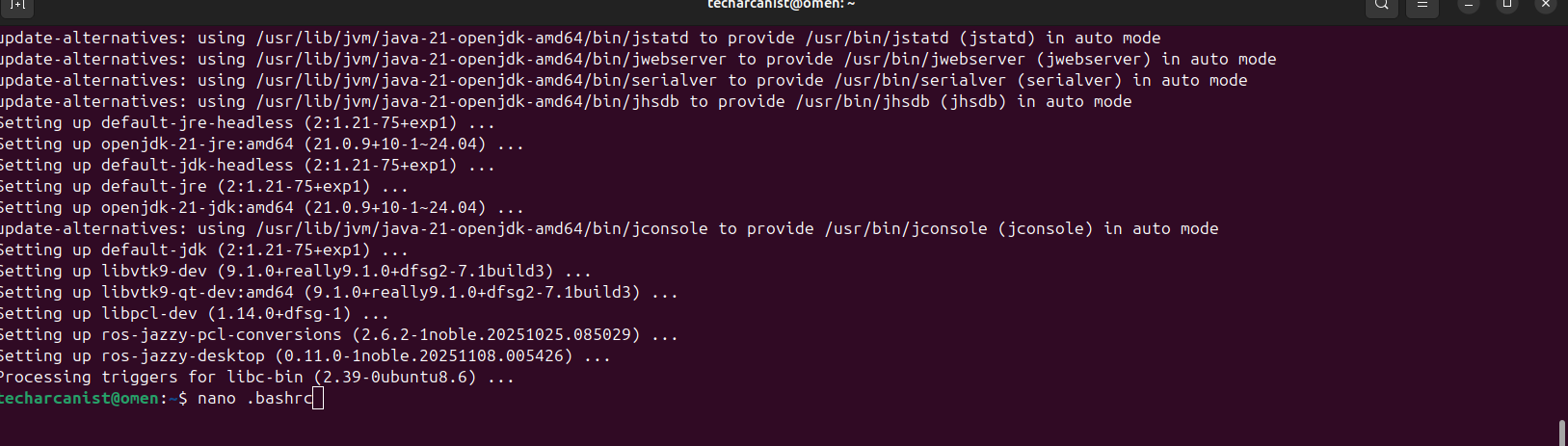
Open the bash configuration file:
nano ~/.bashrc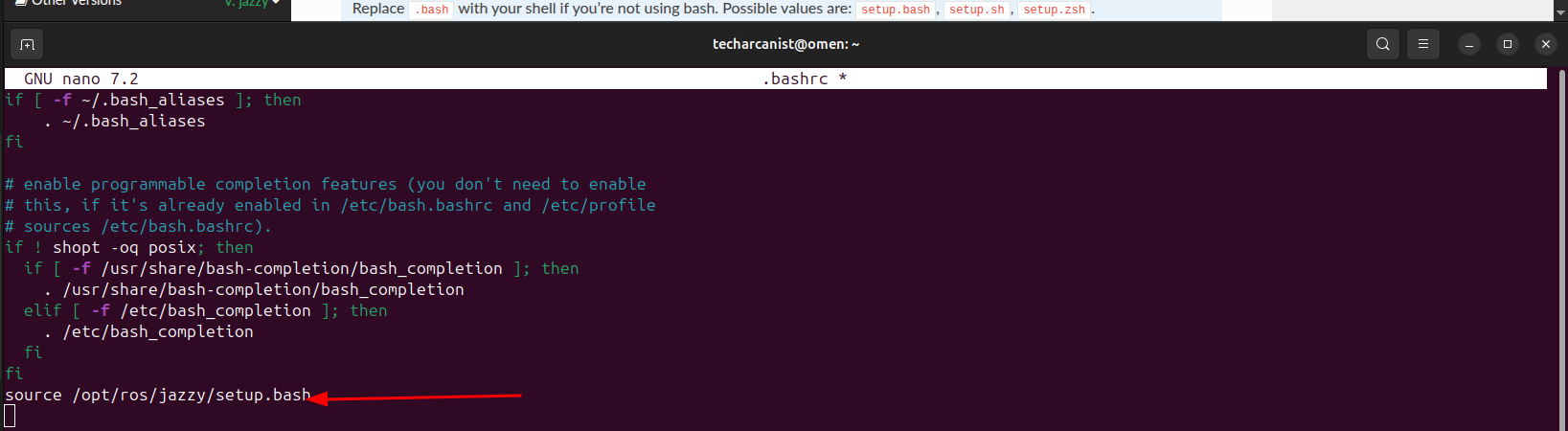
Paste this line at the end of the file:
source /opt/ros/jazzy/setup.bash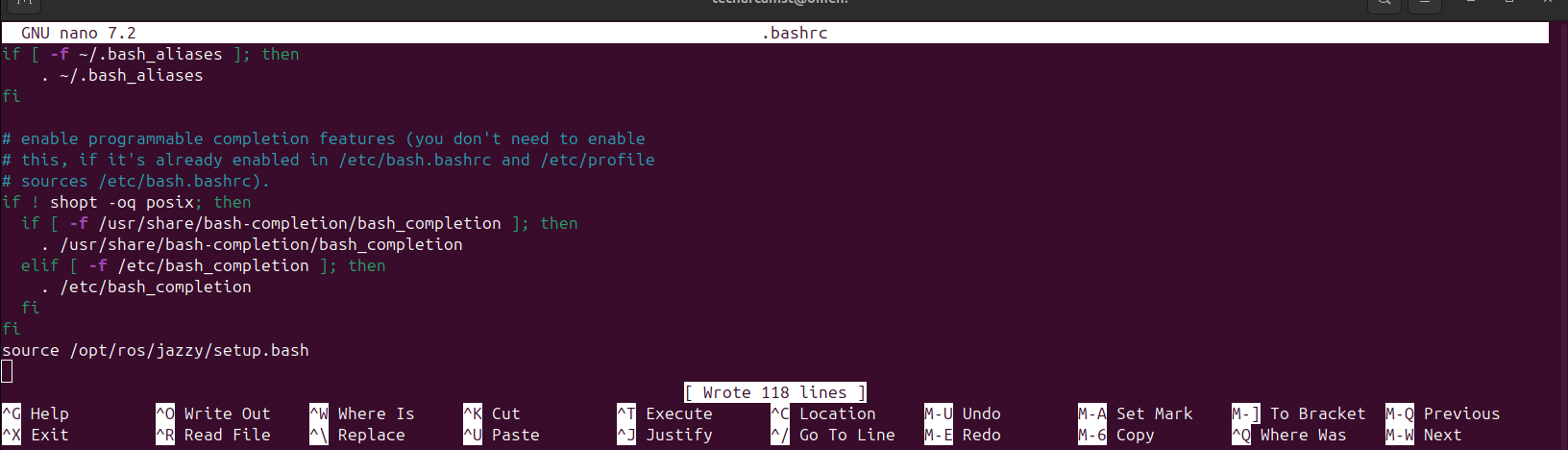
- Press Ctrl + O
- Press Enter to save
- Press Ctrl + X to exit
Step 7: Verify Installation
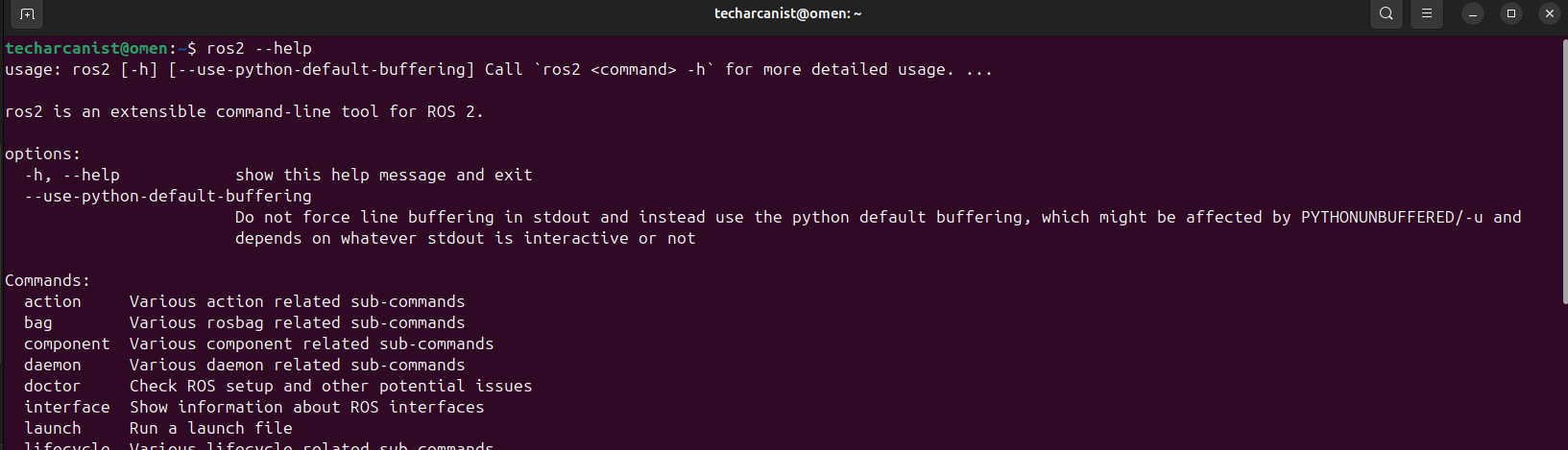
Open a new terminal (this is important).
ros2 --helpIf no error appears, ROS 2 Jazzy is installed successfully.