
06Chapter 6 of 51
ROS 2 Python Publisher
A ROS 2 publisher node sends messages to a topic at a defined frequency. In this example, the Python node publishes String messages to the chatter topic at 1 Hz, with each message containing an incrementing counter.
The section also covers the basic ROS 2 commands used to inspect the topic, view its messages, check publisher/subscriber information, and verify the message publishing frequency.
Open Visual Studio Code
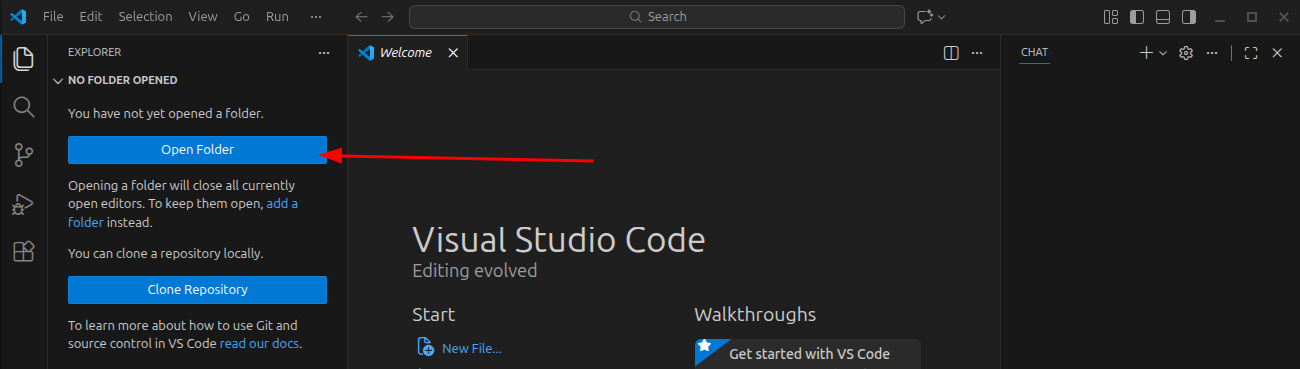
What you do
- Open Visual Studio Code
- Click Open Folder
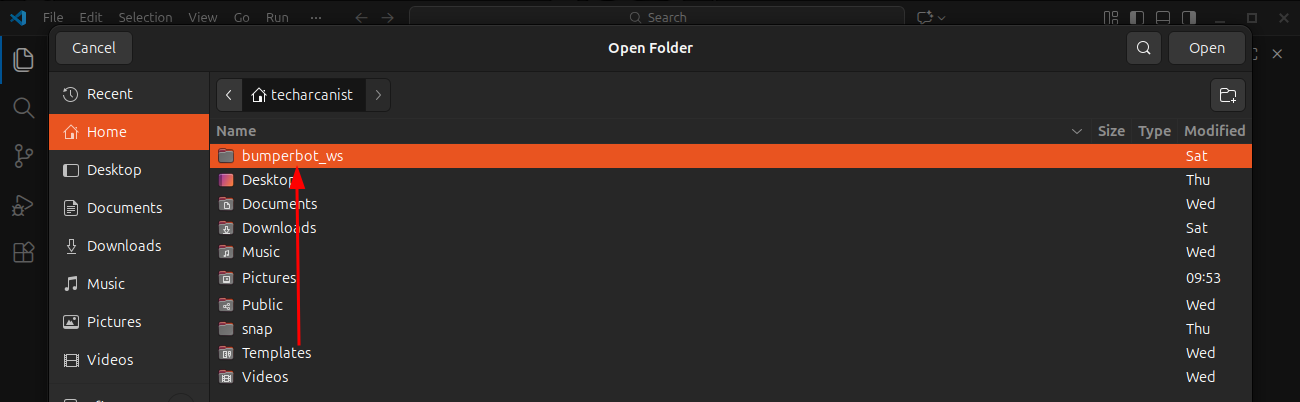
Now
- Select: bumperbot_ws
- Click Yes, I trust the authors
Navigate to the Python Package
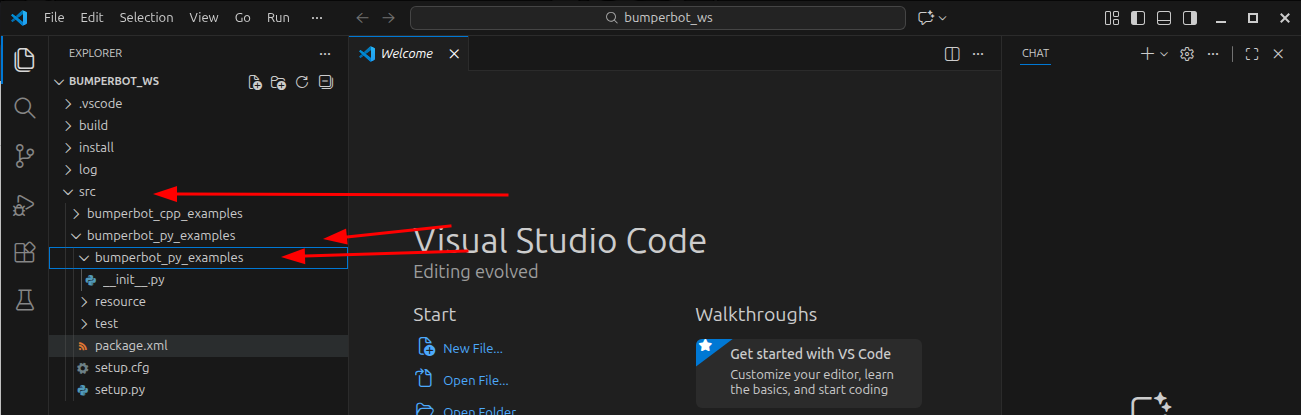
Inside VS Code, go step by step:
src
└── bumperbot_py_examples
└── bumperbot_py_examples
Why two folders with same name?
- Outer folder → ROS 2 package
- Inner folder → Python module (source code)
Create the Python Node File
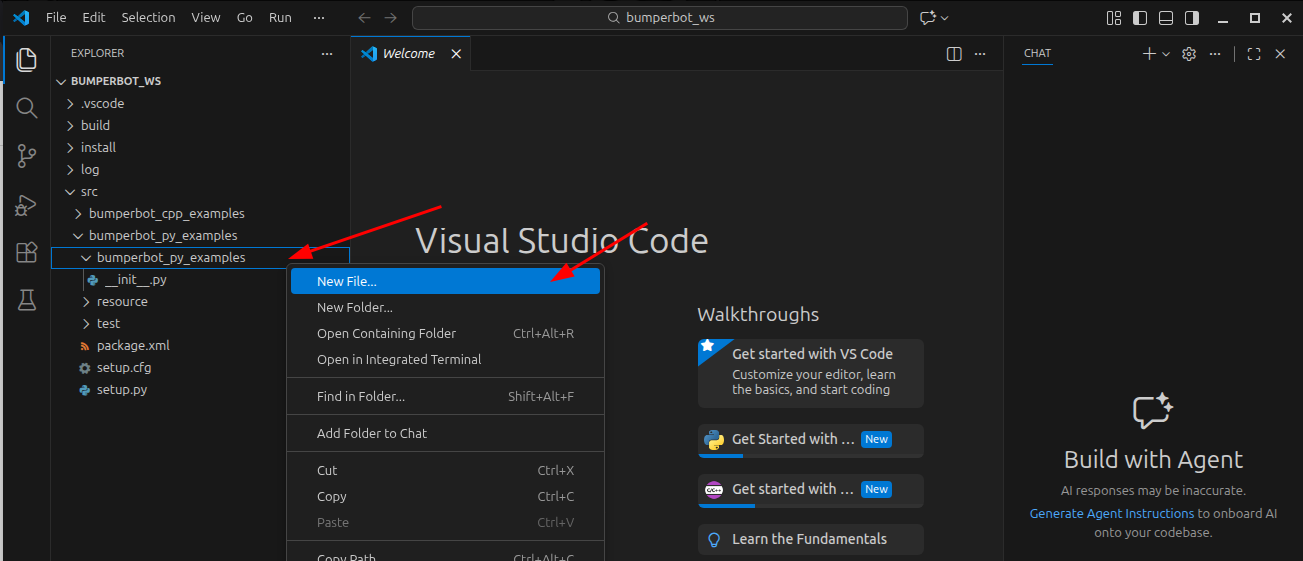
What you do
- Right-click on inner
bumperbot_py_examples - Click New File
- Name it:
simple_publisher.py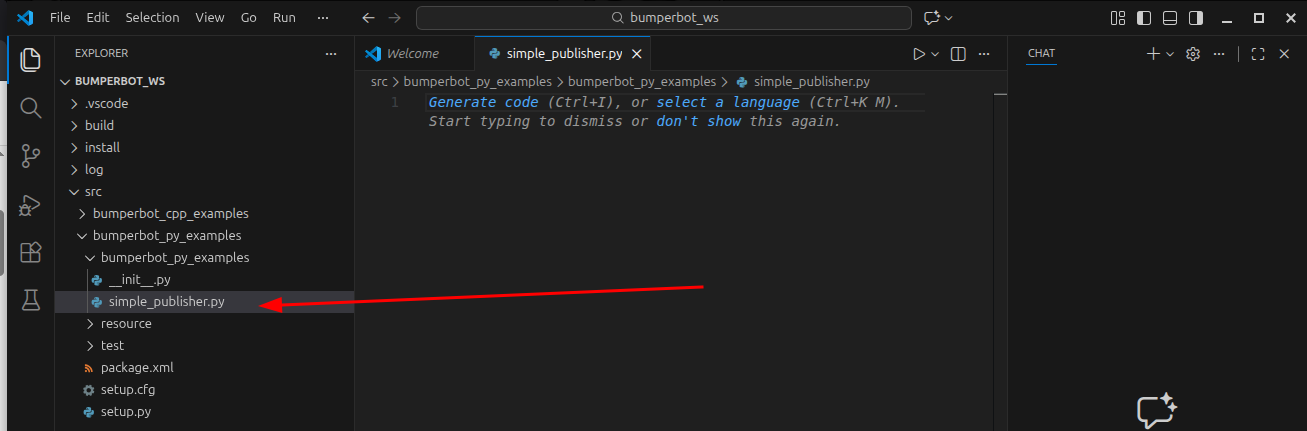
This file will contain our ROS 2 node code.
Code for simple_publisher.py
import rclpy
from rclpy.node import Node
from std_msgs.msg import String

class SimplePublisher(Node):
    def __init__(self):
        super().__init__("simple_publisher")

        self.pub_ = self.create_publisher(String, "chatter", 10)

        self.counter_ = 0
        self.frequency_ = 1.0

        self.get_logger().info("Publishing at %d Hz" % self.frequency_)
        self.timer_ = self.create_timer(self.frequency_, self.timerCallback)

    def timerCallback(self):
        msg = String()
        msg.data = "Hello ROS 2 - counter: %d" % self.counter_

        self.pub_.publish(msg)
        self.counter_ += 1

def main():
    rclpy.init()

    simple_publisher = SimplePublisher()
    rclpy.spin(simple_publisher)

    simple_publisher.destroy_node()
    rclpy.shutdown()


if __name__ == '__main__':
    main()
simplepublisher.py code
Explanation for simple_publisher.py
Register Node in setup.py
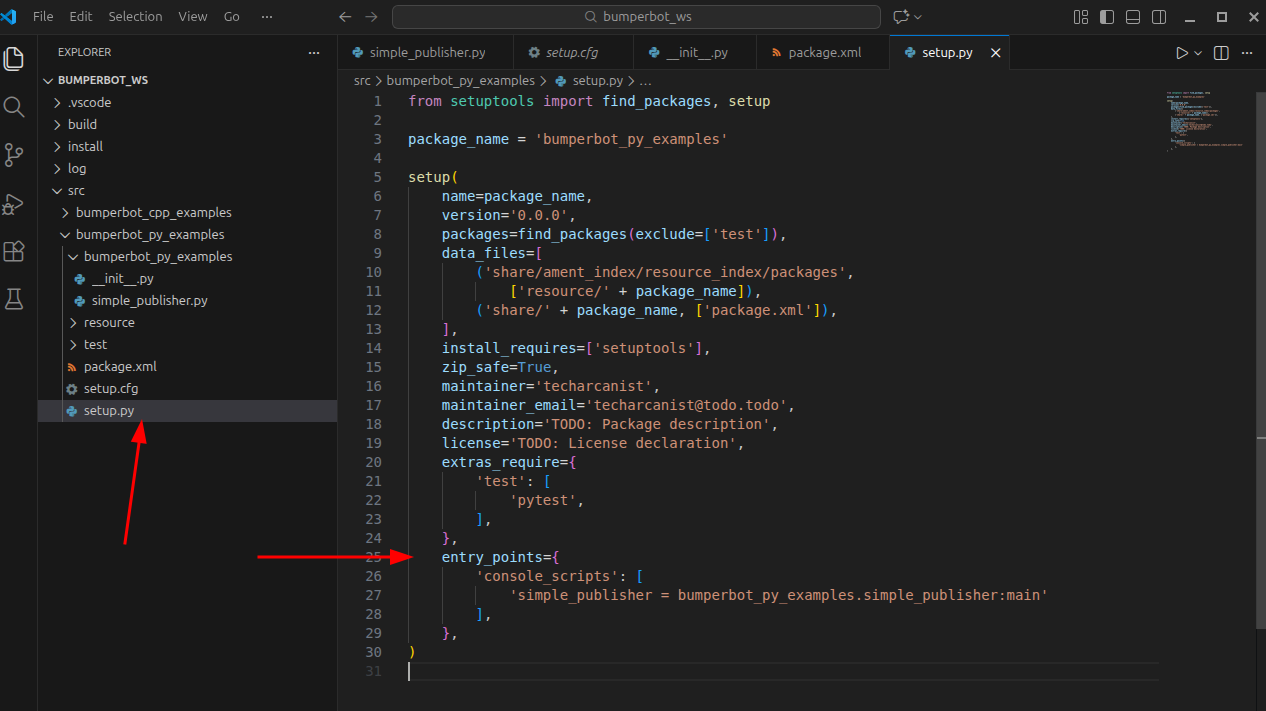
Open: bumperbot_py_examples/setup.py
Add within the entry points
'simple_publisher = bumperbot_py_examples.simple_publisher:main'simple_publisher→ ROS 2 executable name- Used in terminal with:
- ros2 run bumperbot_py_examples simple_publisher
- Can be renamed to anything
- Used in terminal with:
bumperbot_py_examples→ ROS 2 package namesimple_publisher→ Python file name (simple_publisher.py)main→ function name inside that file- Format:
- executable_name = package.python_file:function
- When executed, ROS:
- Finds the package
- Loads the Python file
- Calls the
main()function
Declare Dependencies (package.xml)
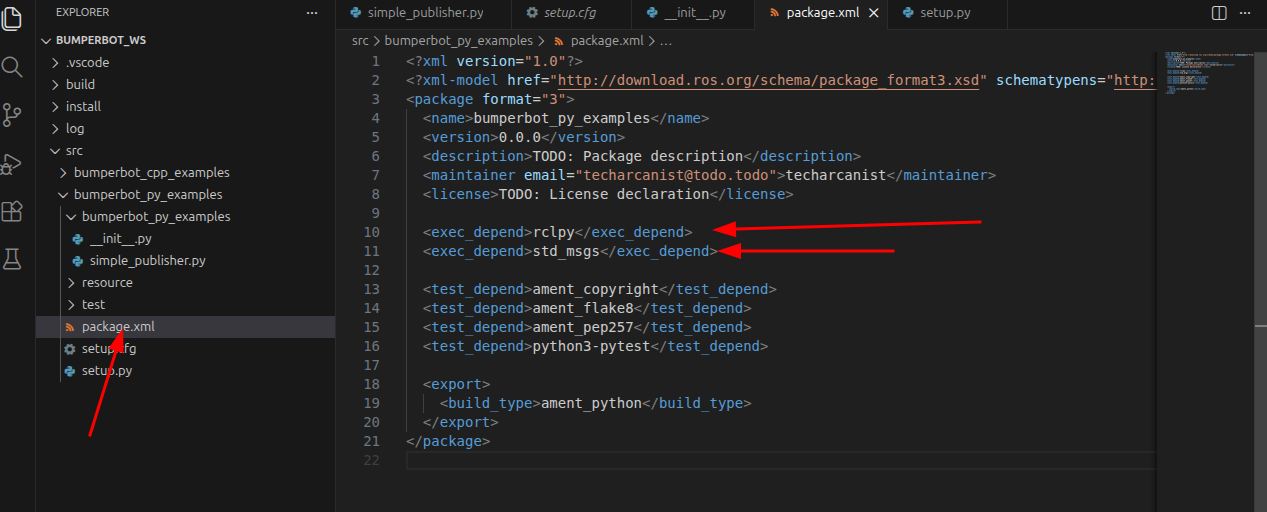
Open: bumperbot_py_examples/package.xml
  <exec_depend>rclpy</exec_depend>
<exec_depend>std_msgs</exec_depend>- Tells ROS 2 which libraries this node needs
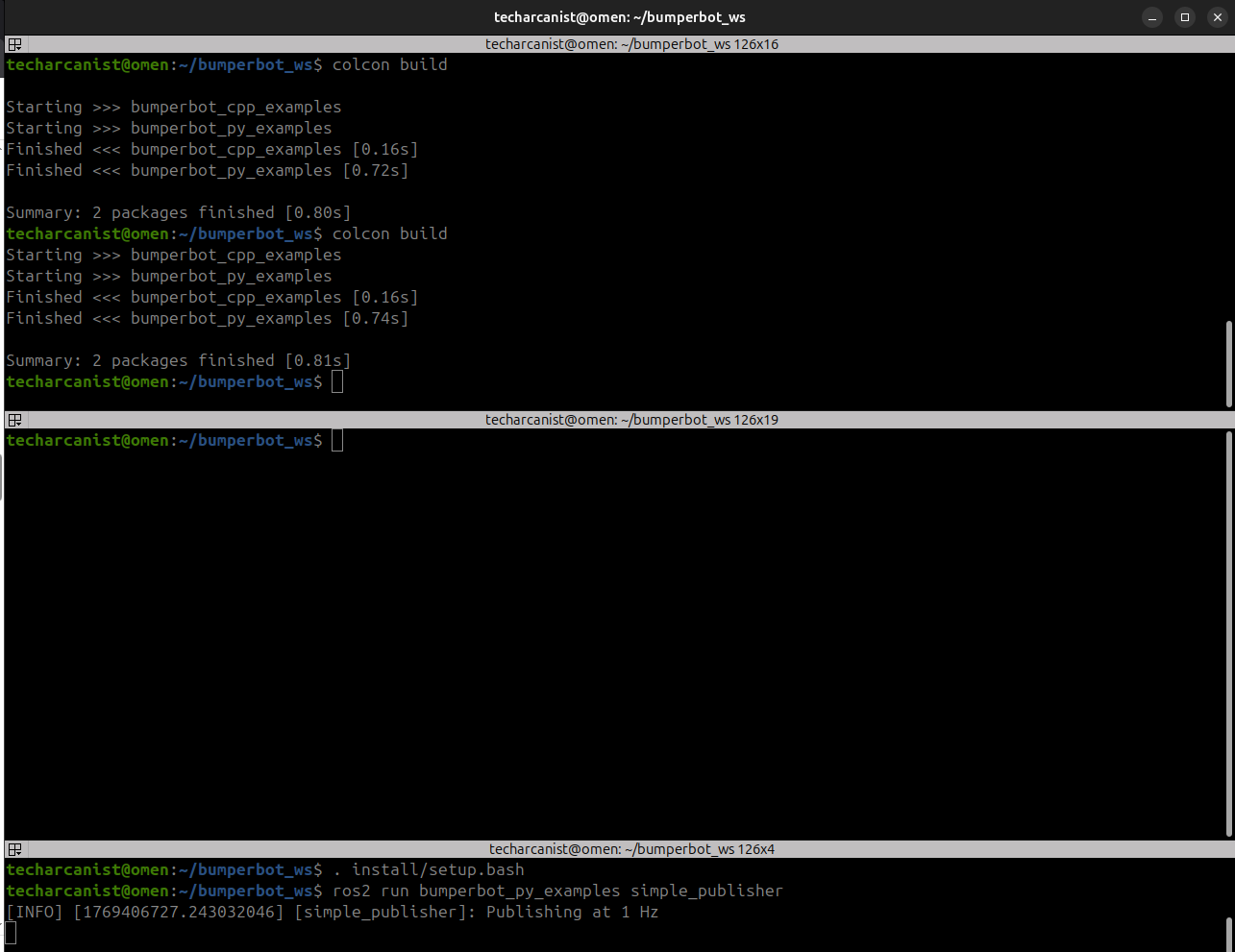
Build the Workspace
cd bumperbot_ws/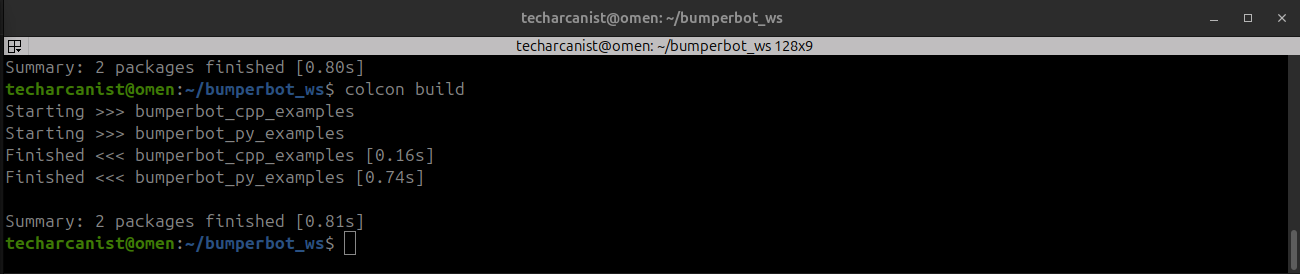
colcon buildConverts Python script into ROS 2 executable
Source the Workspace
. install/setup.bash- Makes ROS 2 aware of your new node
- Must be done per terminal
Run the Node
ros2 run bumperbot_py_examples simple_publisher
- Node starts
- Messages published at 1 Hz
Inspect Topics
List topics
ros2 topic list- Shows all active topics in the ROS 2 system
- Topics appear only if some node is using them

/chatter→ your publisher is running- If
/chatteris NOT listed → publisher is not active
Use this when
- You want to check which topics exist
- You want to verify your node is publishing
View messages
ros2 topic echo /chatter- Prints live messages from a topic
- Works like “listen to this topic”
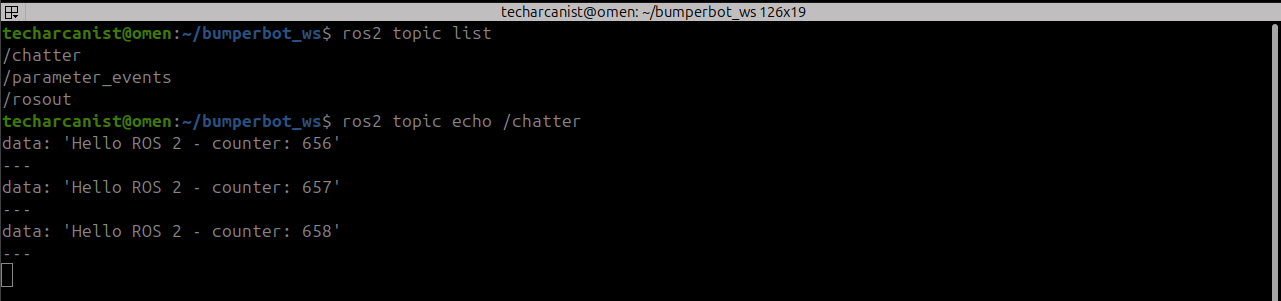
What happens
- Subscribes temporarily to
/chatter - Displays messages as they arrive
- ros2 → use ROS 2 CLI
- topic → work with topics
- echo → listen & print messages
- /chatter → from this topic
Topic details
ros2 topic info /chatter --verbose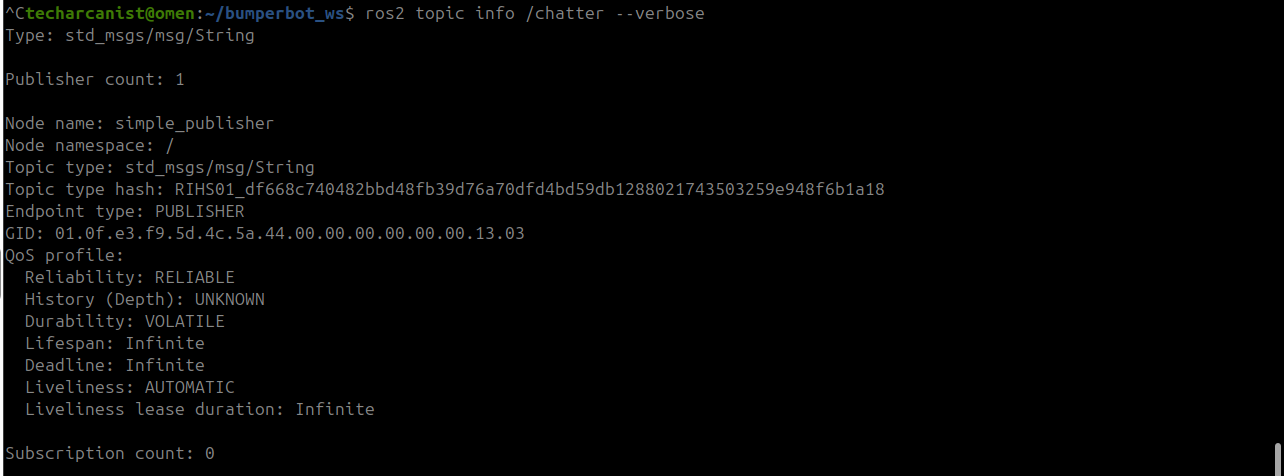
- You use this command to:
- Check who is publishing
- Check who is subscribing
- Check message type
- Check QoS settings
- Debug communication issues
Check frequency
ros2 topic hz /chatterMeasure how fast messages are coming on a topic.
What output looks like
average rate: 1.000
	min: 1.000s max: 1.000s std dev: 0.00016s window: 3
average rate: 1.000
	min: 1.000s max: 1.000s std dev: 0.00018s window: 4
average rate: 1.000
	min: 1.000s max: 1.000s std dev: 0.00019s window: 6
average rate: 1.000
	min: 1.000s max: 1.000s std dev: 0.00017s window: 7
average rate: 1.000
	min: 1.000s max: 1.000s std dev: 0.00016s window: 8
average rate: 1.000
	min: 1.000s max: 1.000s std dev: 0.00022s window: 10
average rate: 1.000
	min: 1.000s max: 1.000s std dev: 0.00021s window: 11
average rate: 1.000