Introduction
Tech Arcanist is a DIY project sharing platform. A maker writes a project as numbered steps with photos, code, YouTube videos, Wokwi and Tinkercad circuit simulators and interactive HTML visualizers, plus a materials list. Other people can like, save, comment on, fork and "make" it, and several projects can be bundled into a course: a step-by-step guide to building something bigger.
It is a prototype. I built it as a suggestion for inunity, my last company, which has its own DIY application, Inpulse. I wanted to show what more features a DIY app could have and what a better ecosystem for DIY could look like: lessons you can interact with inside a project, courses, progress tracking, forking and backups.
It is a complete working app, not only a front end. The page is one HTML file and the backend is Firebase: sign-in, a Firestore database with security rules, and hosting. A maker signs in, publishes a project from the form, it is saved in Firestore and it is visible to everyone. There is no server code of my own, and it runs on Firebase's free plan at techarcanist.blog.
Who it is for
Makers and learners in electronics, robotics, AI, IoT, 3D printing, programming and cybersecurity, which are the categories on the site. It is first of all the home of the Tech Arcanist projects and courses, and anyone with a Google or email account can publish their own.
What it does
- Projects: a step-by-step build page with a cover image, materials with prices and links, difficulty voting and comments.
- Interactive steps: every step can hold text, code, a YouTube video, a Wokwi or Tinkercad simulator and a custom HTML visualizer that runs inside the page.
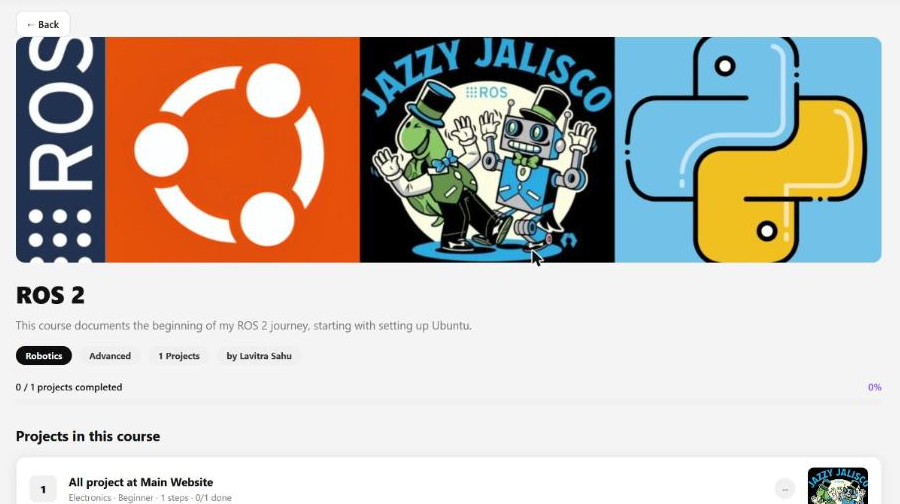
- Courses: an ordered list of projects with a banner image and a progress bar for each signed-in learner.
- Progress and profiles: every step can be ticked off, started builds show up on the home page, and each maker has a profile with badges and followers.
- Backup: any project can be downloaded as a file and imported again.
Ideas this prototype puts forward
- Learn by trying: simulators and HTML visualizers inside the steps, so a reader can run a circuit or play with an idea without leaving the page.
- Courses with progress: projects bundled into a path, with a tick for every step and a bar for every course, plus course-only projects that live only inside a course.
- Remix and keep your work: fork a project into your own draft, and export or import a project as a file.
- Honest difficulty: readers vote Too Easy, Just Right or Too Hard on each project.
- Made for phones: a filter panel, a bottom tab bar and the phone's own share sheet.
- Live site: techarcanist.blog
Tech stack
| Part | Choice | Why |
| Front end | One HTML file of 5,363 lines: about 1,390 lines of CSS and about 3,200 lines of JavaScript inline, 180 top-level functions. No framework, no build step | Deploys by uploading one file and is easy to change |
| Backend | Firebase, a managed backend: Authentication for accounts, Cloud Firestore as the database with security rules, and Hosting. There is no custom server code, no Node server and no Cloud Functions | A project published from the form is stored in Firestore and is visible to everyone at once, with nothing for me to host or maintain |
| Look | Hand-written CSS with variables, a light and a dark theme, a black, grey and purple palette | My own look, not a template |
| Code in steps | highlight.js 11.9 | Syntax-coloured code blocks |
| Database | Cloud Firestore: 4 groups of data protected by a 41-line rules file | No server to run, free tier |
| Sign-in | Firebase Authentication with Google, or email and password | No account code of my own |
| Images | Stored inside the Firestore documents as data (base64). The Storage library is loaded but not used for images | No paid storage plan needed |
| Analytics | Firebase Analytics | Visit counts |
| Hosting | Firebase Hosting with every address served by the one HTML file, on the custom domain techarcanist.blog | Free tier, one-command deploy |
| Installable | A web app manifest, so phones can add it to the home screen. There is no service worker | Opens like an app on phones |
How it works
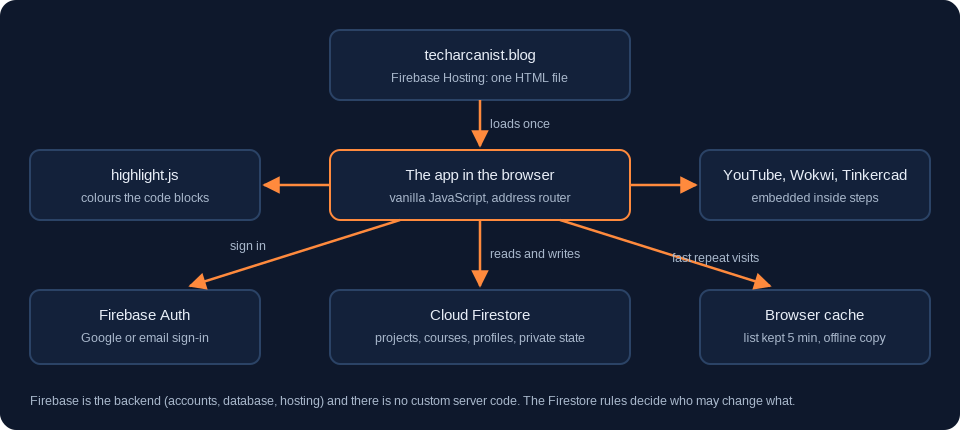
- Browser app: a small router reads the address (a project, a course, a profile, the Projects page, the Courses page, Saved, Following or New) and shows the matching page. The back button works.
- Firestore and its rules: anyone can read projects, courses and profiles. A signed-in user can create a project or course, and only its author can change or delete it. A user's private state (likes, saved projects, step progress, votes, follows) can be read and written only by that user.
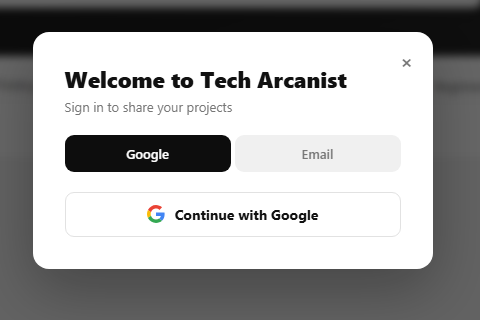
- Sign-in: Google or email and password, with a profile document created on the first sign-in.
- Embeds: YouTube, Wokwi and Tinkercad are loaded inside steps, and highlight.js colours the code.
A typical action, publishing a project: the form is gathered and checked (a title, a description and at least one step), photos and attachments are turned into data and added to the project document, the document is written to Firestore, the project list reloads and the new project page opens. From then on every visitor can read it.
Public features: what any visitor sees
Home, Projects and Courses
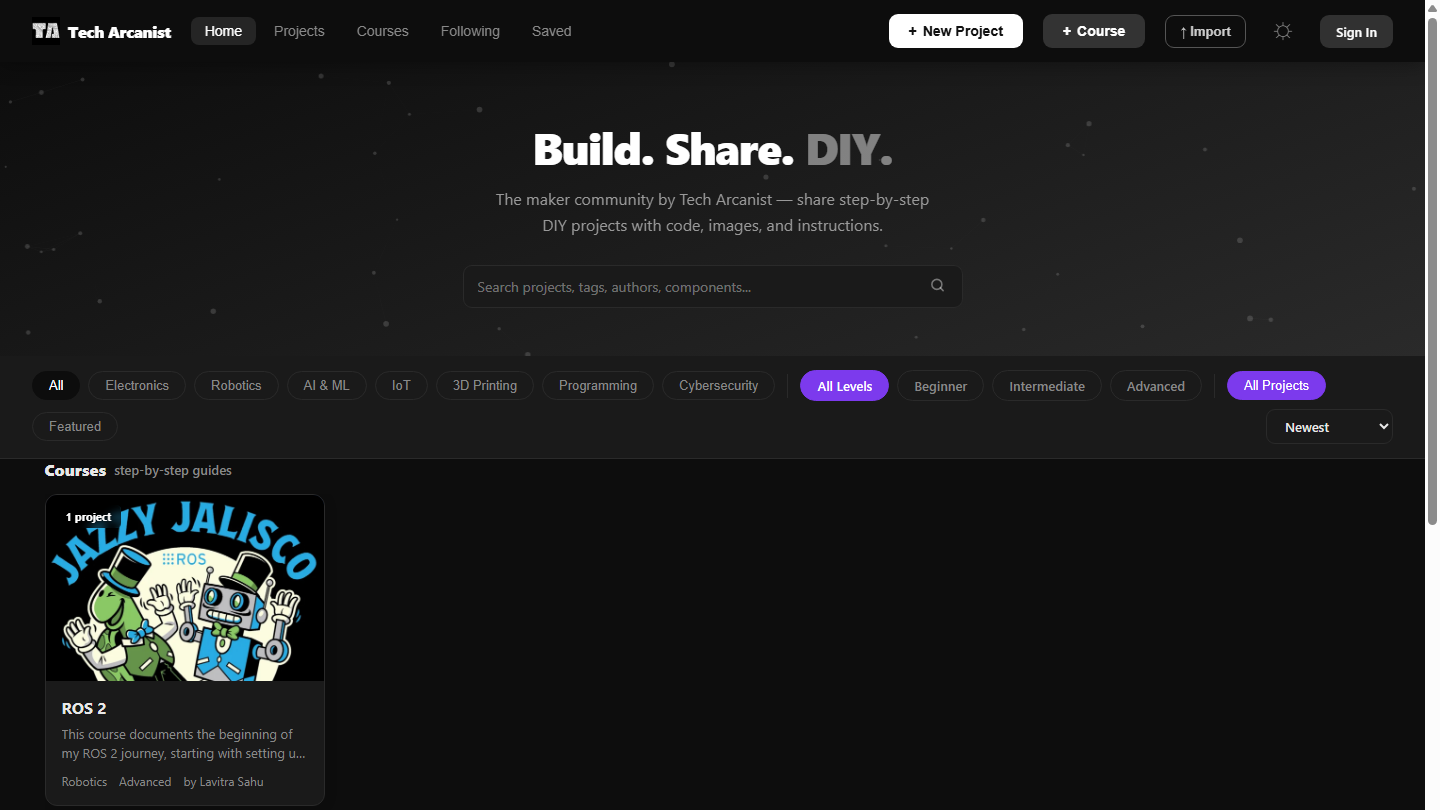
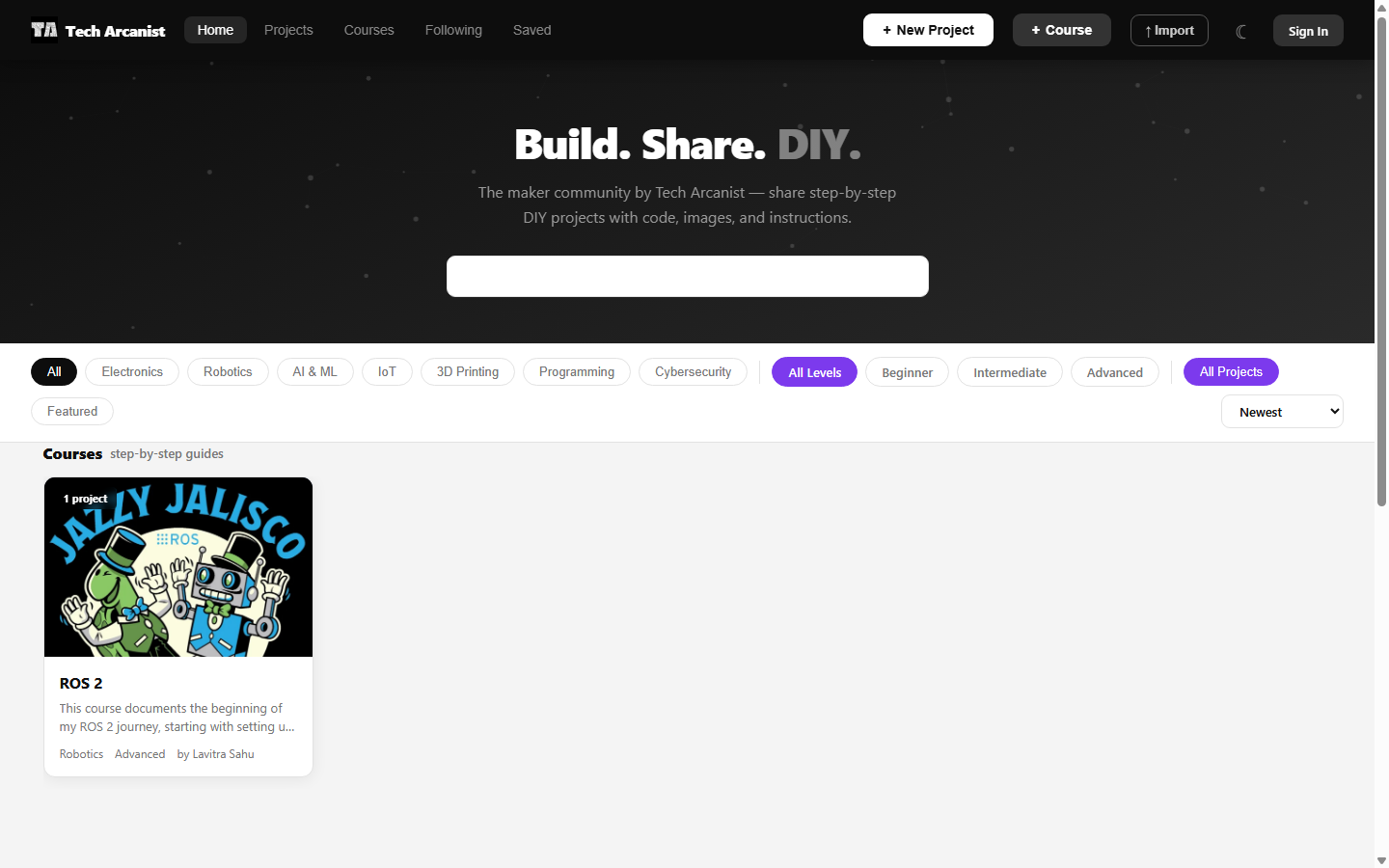
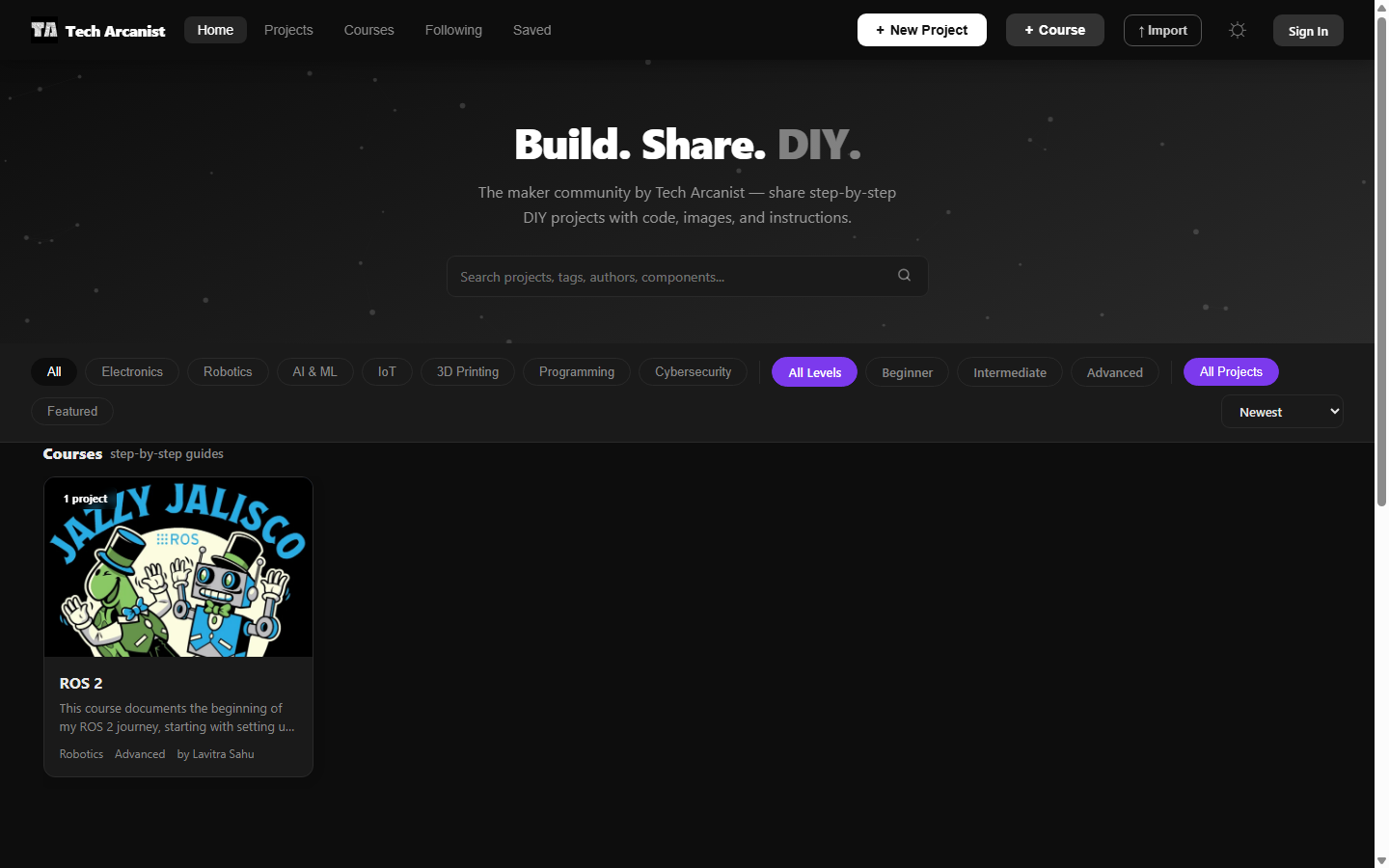
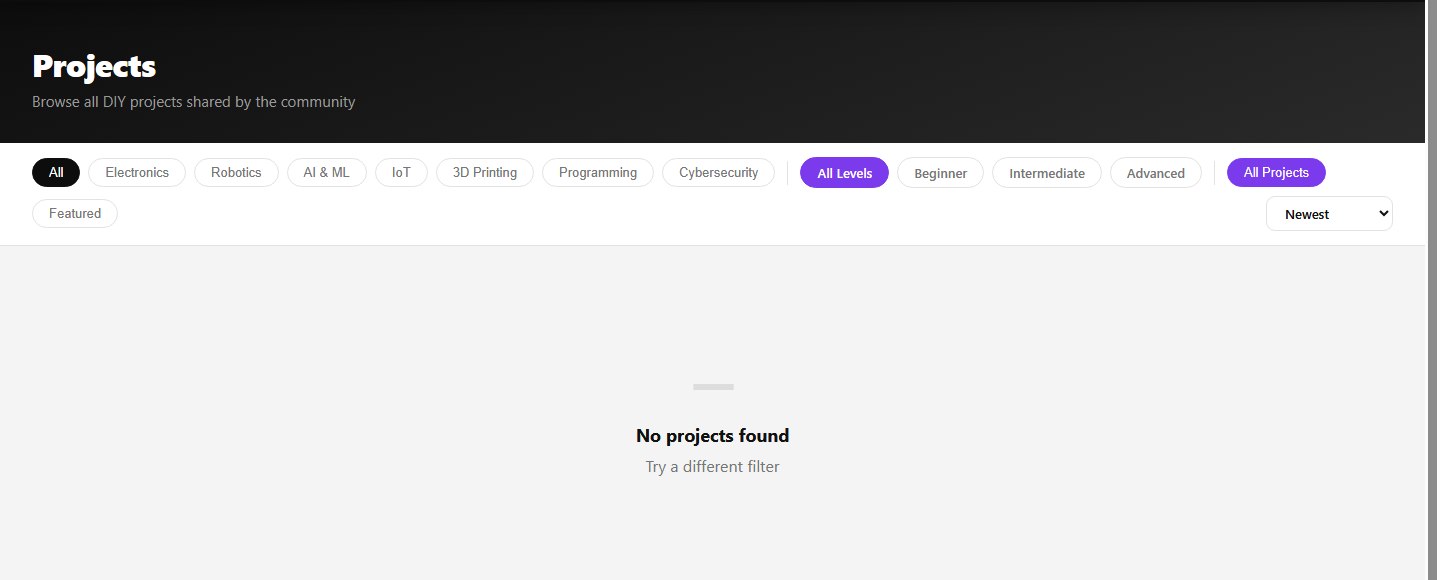
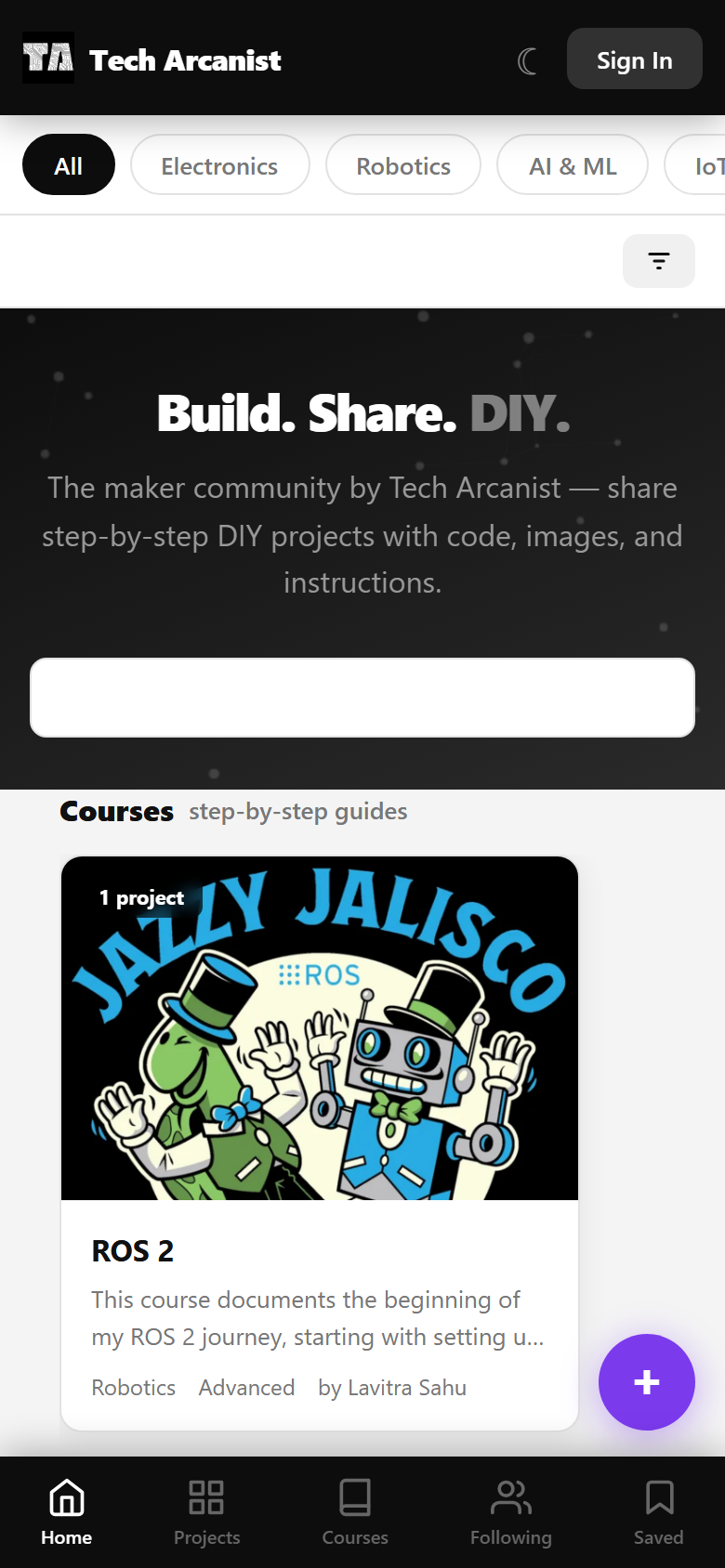
The home page has an animated hero ("Build. Share. DIY."), a search box that looks through title, description, author, tags and materials, category chips (Electronics, Robotics, AI and ML, IoT, 3D Printing, Programming, Cybersecurity), difficulty chips (Beginner, Intermediate, Advanced), a Featured filter and a sort menu (Newest, Most Liked, Most Viewed, Most Made). A Courses row sits above the project grid. A Trending row (the top 6 of the last 7 days by likes plus views) only appears once at least 8 projects are published. The Projects and Courses pages use the same filters on their own pages.
The project page
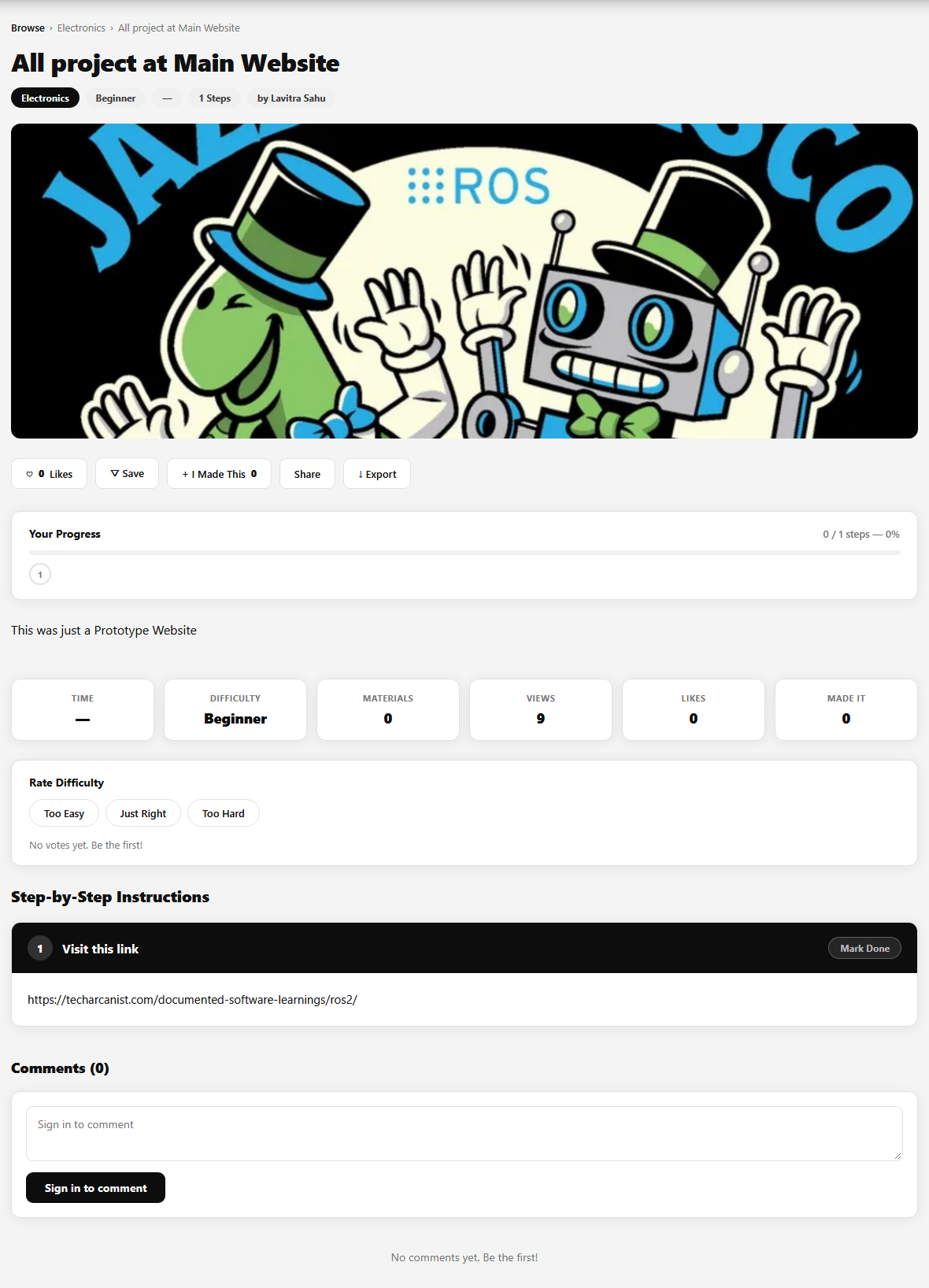
Everything about a project sits on one page:
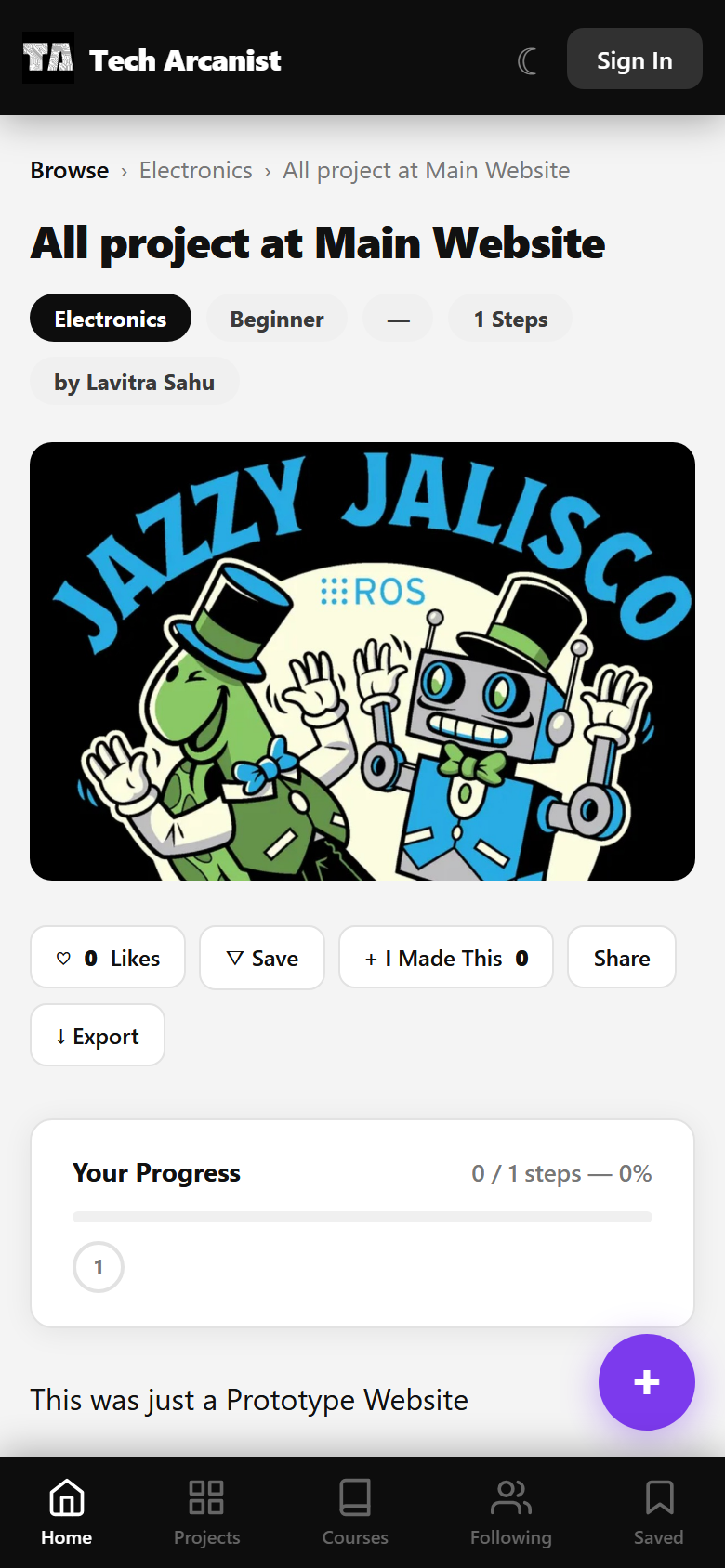
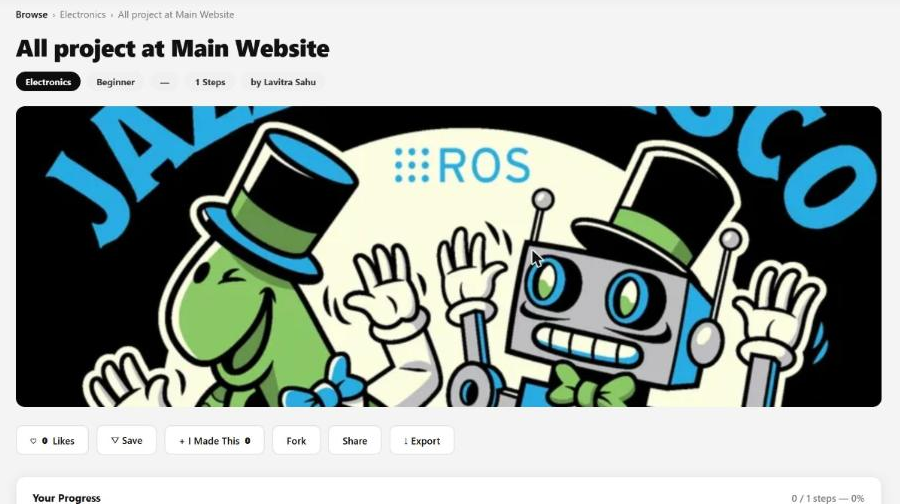
- Header: category, difficulty, time, number of steps and author, then the cover image and an optional YouTube video.
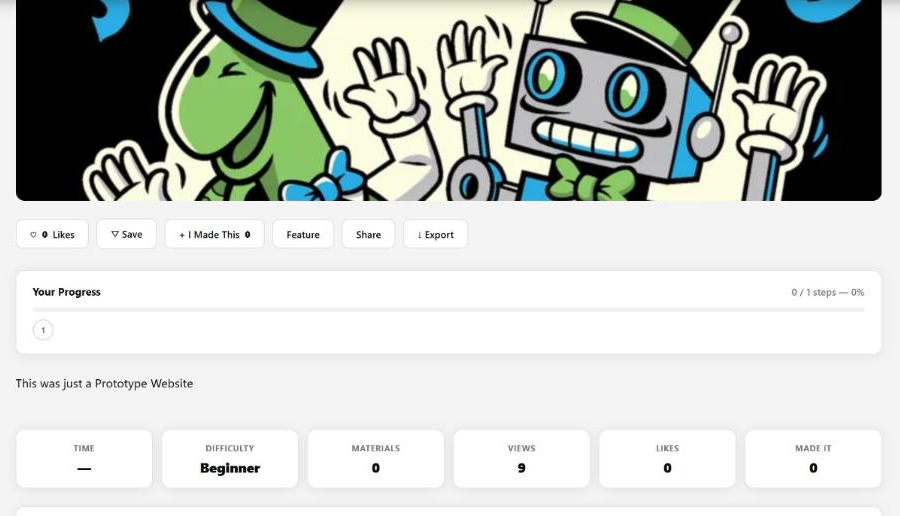
- Action bar: Like, Save, I Made This, Fork, Share and Export.
- Progress: a bar and one dot per step, saved to the signed-in reader's account.
- Info and voting: time, difficulty, number of materials, views, likes and made-it count, and a "Rate Difficulty" vote (Too Easy, Just Right, Too Hard) with result bars.
- Materials and Tools: each item with an optional buy link and a price, and an estimated total.
- Comments and related projects: related projects share the category or a tag, up to 4.
Interactive steps: video, simulators, HTML visualizers and code
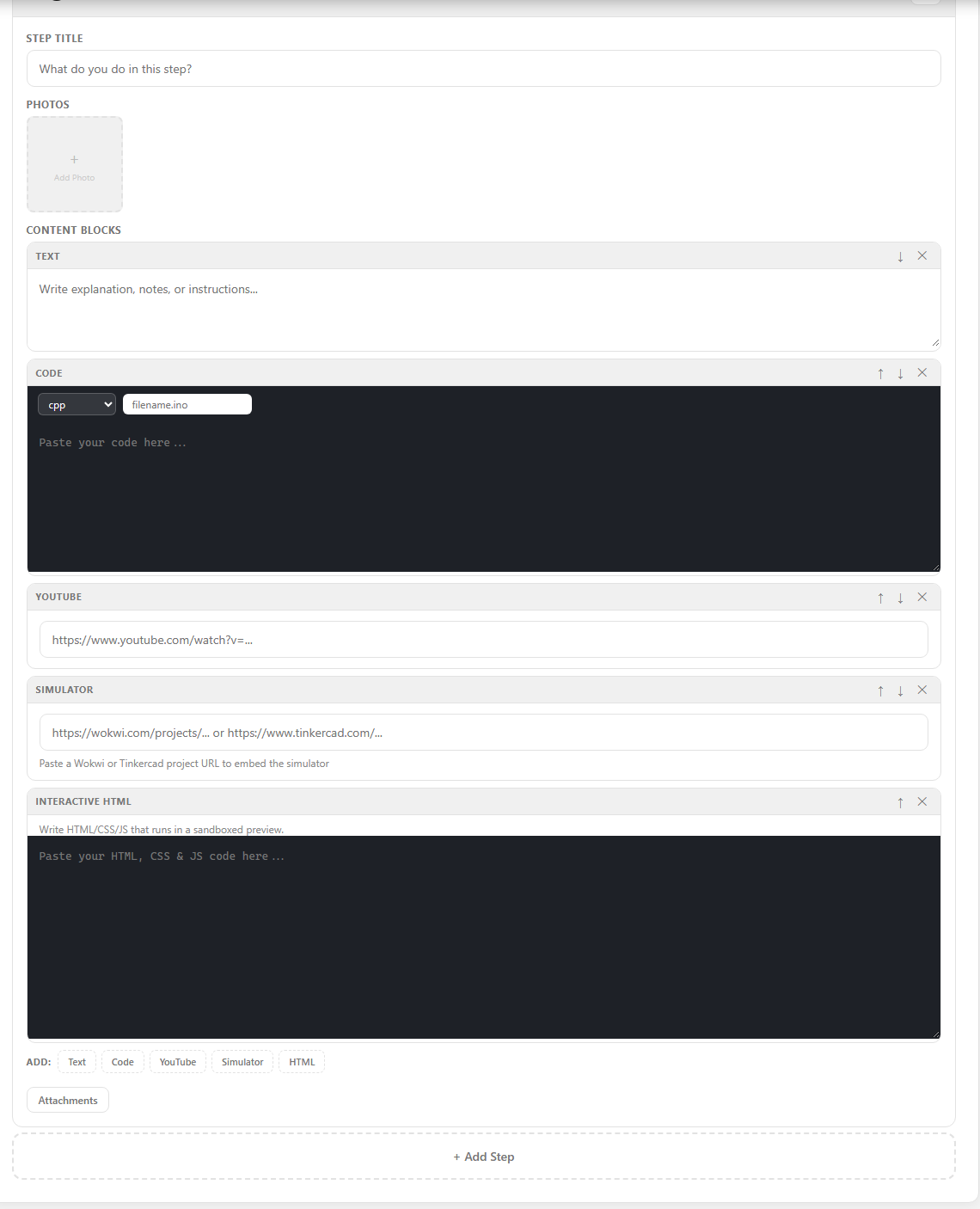
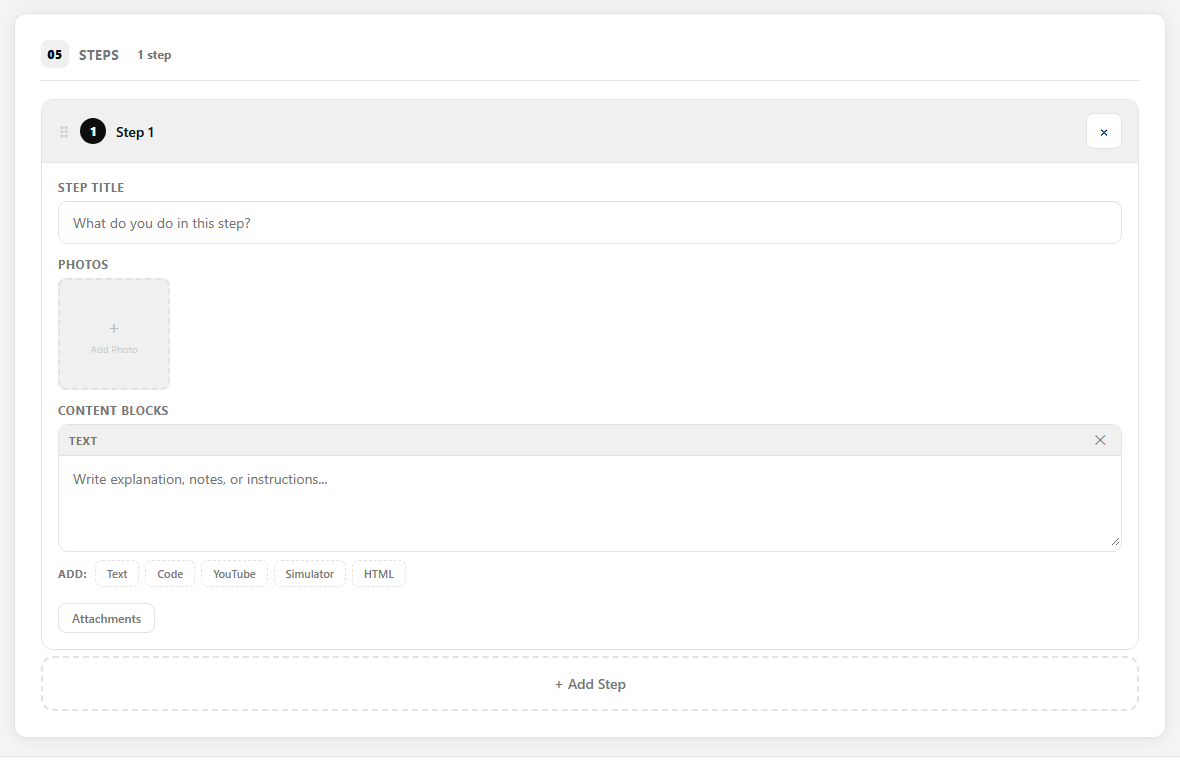
A step is more than text and pictures. Each step has a title, photos (several photos become a swipeable carousel, and a tap opens a full-size lightbox) and content blocks that the author stacks in any order and can move up or down:
- Text for explanations.
- Code with a language picker, a file name, syntax colours and a Copy button.
- YouTube: paste a video link and it plays inside the step. A project can also have one main video under its cover.
- Simulator: paste a Wokwi or Tinkercad project link and the circuit is embedded in the step, so a reader can run it in the page.
- Interactive HTML: paste a complete piece of HTML, CSS and JavaScript and it runs in a sandboxed frame inside the step with a Reset button. This is how an interactive visualizer or a small demo can live inside a project, and the frame grows to fit it.
- Attachments that readers can download.
Every step also has a Mark Done button for progress tracking.
Courses
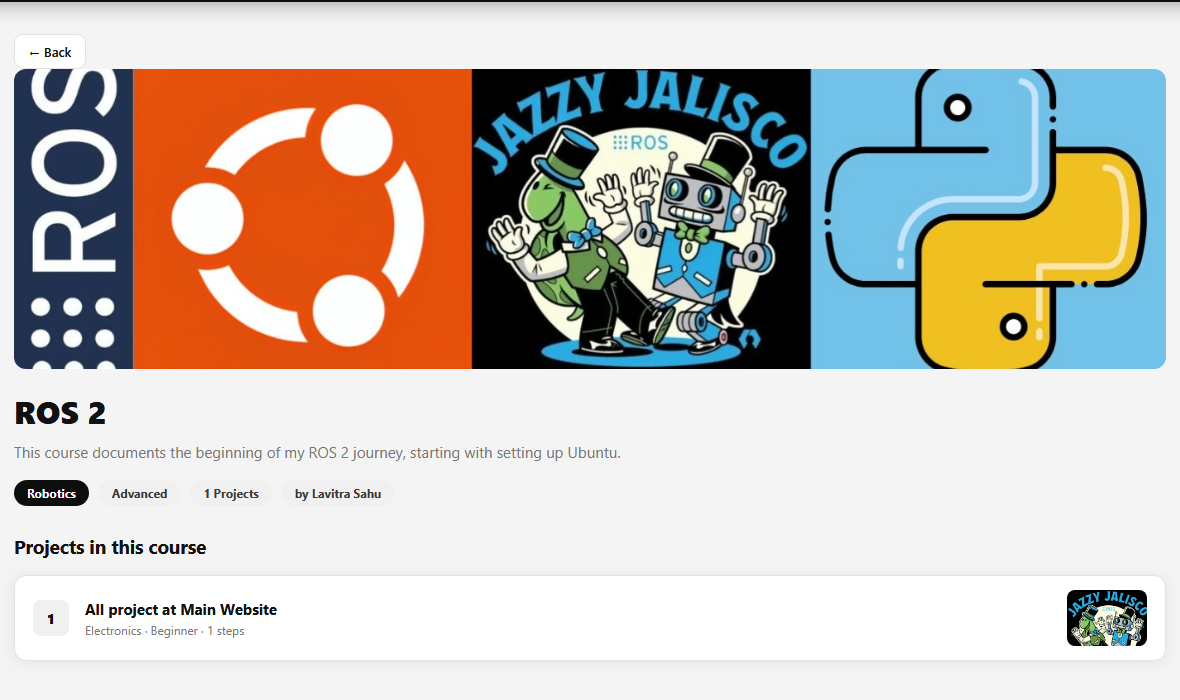
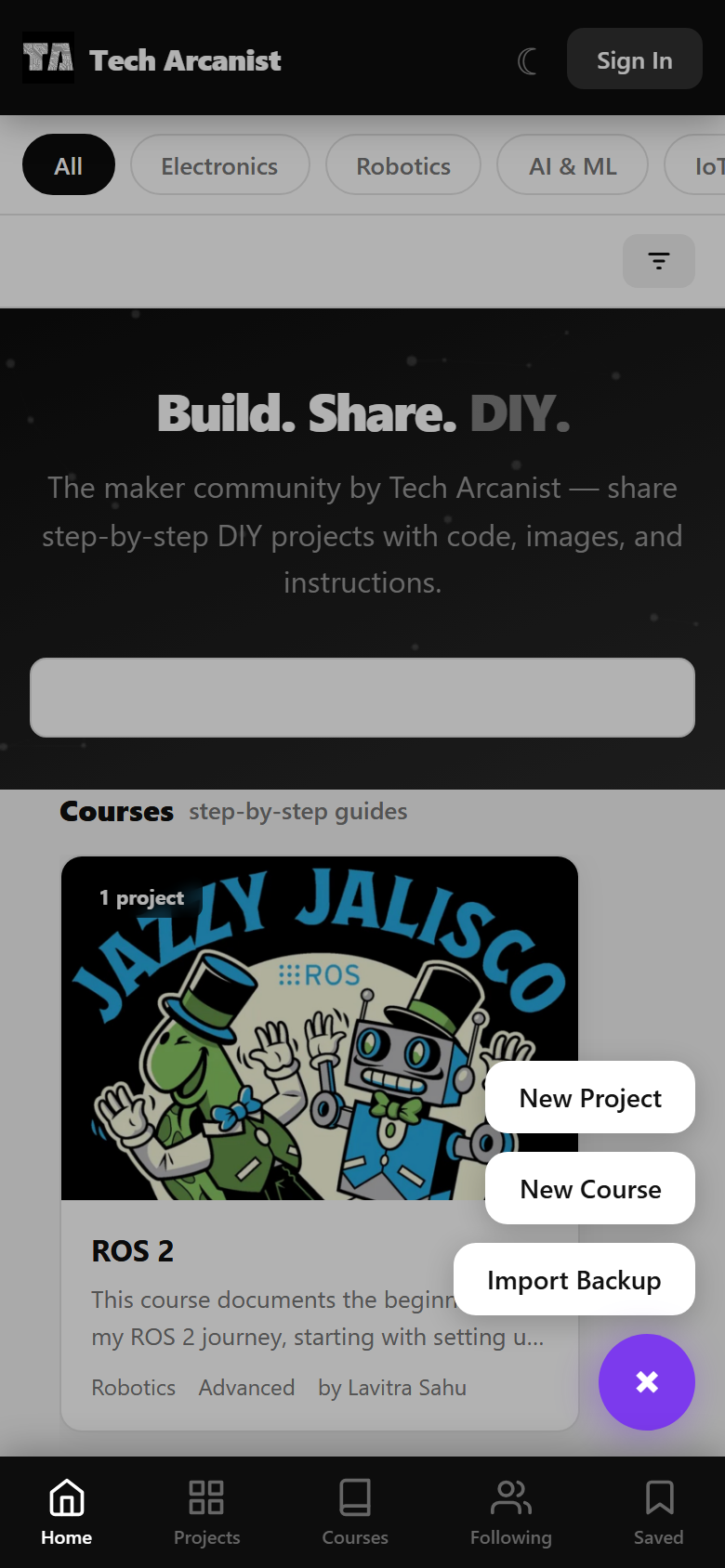
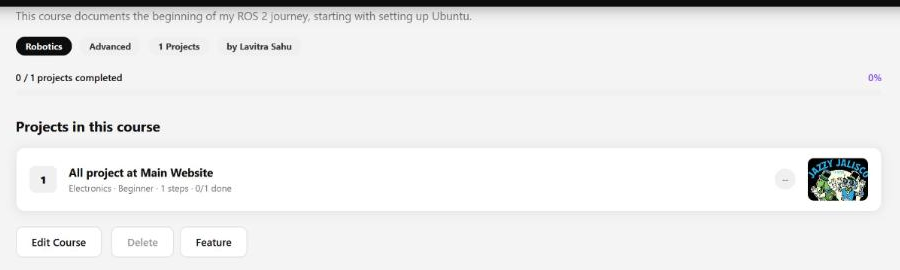
A course page has a banner, category, difficulty, number of projects and author, and the ordered list of its projects. For a signed-in learner each project shows done, partly done or not started, and a progress bar shows how many projects are finished.
Profiles, sharing and backup
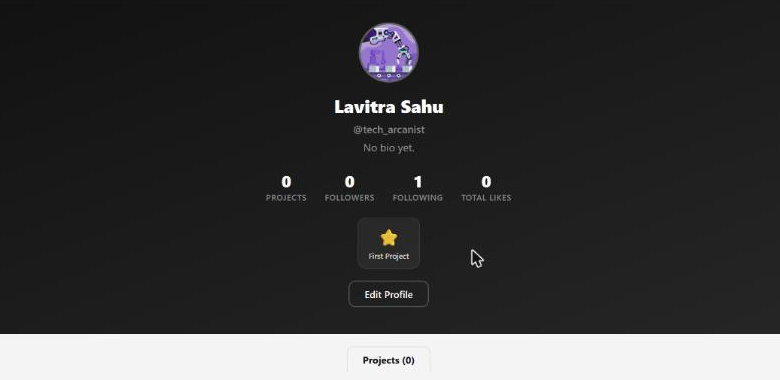
- Profiles: avatar, name, @username, bio, location, website, social links (GitHub, X, YouTube, LinkedIn, Instagram), counts of projects, followers, following and likes, skill tags, badges and a Follow button.
- Share: where the browser supports it (mostly phones) the system share sheet opens; otherwise a small menu offers Copy Link, WhatsApp and X.
- Export and Import: Export downloads a project as a file, and Import (signed in) fills the new-project form from such a file, so an author can rebuild a project from their own copy.
Phones and tablets
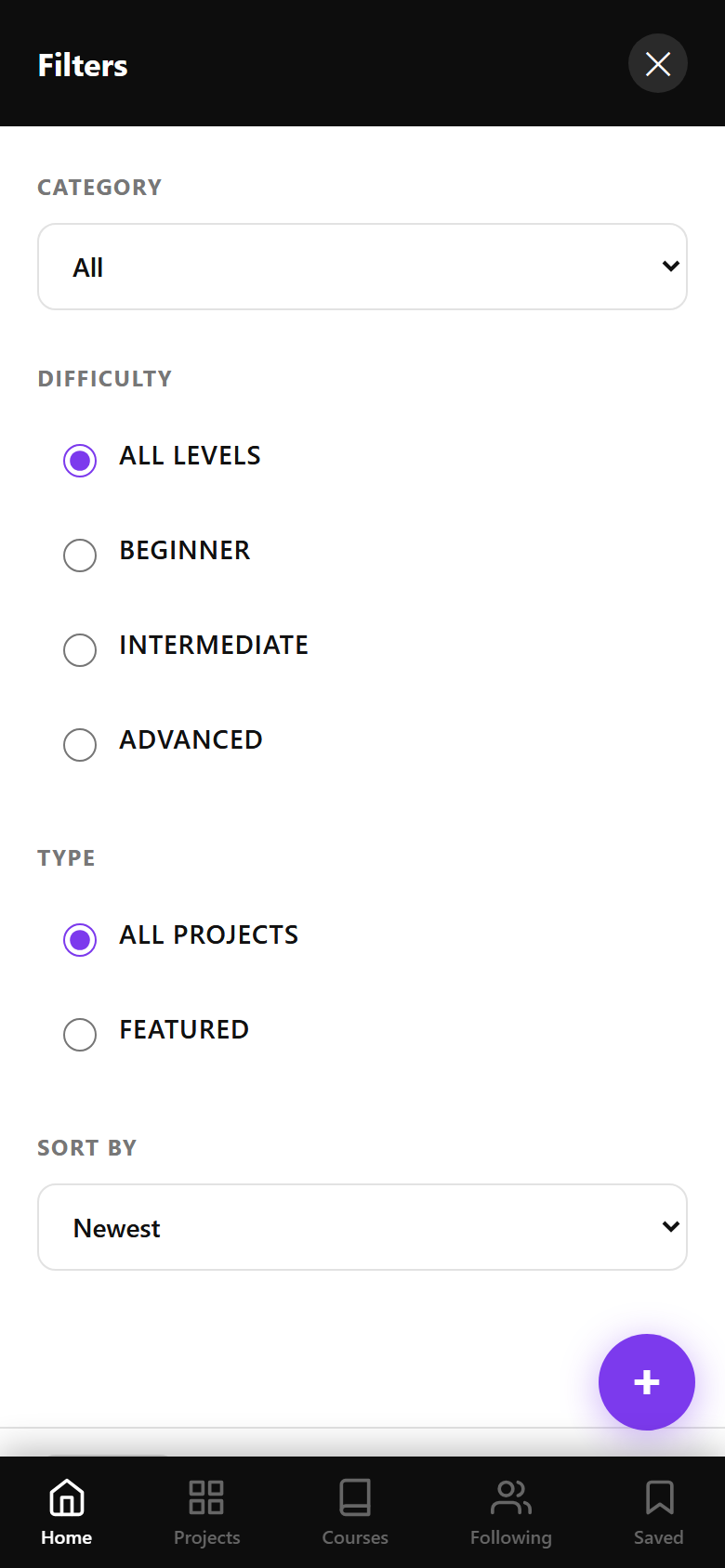
Above 1024 px the full toolbar is shown. At 1024 px and below the site switches to scrolling category chips, a filter button that opens a full-screen filter panel (category, difficulty, type, sort), a bottom tab bar (Home, Projects, Courses, Following, Saved) and a floating plus button (New Project, New Course, Import Backup). Between 600 and 1024 px the project grid has two columns.
Speed and sharing set-up
Projects and courses load at the same time and without waiting for sign-in. A copy of the list is kept in the browser for 5 minutes so a repeat visit paints at once, Firestore's offline cache is on, grey skeleton cards show while data loads and card images load lazily. I did not measure load times, so there are no numbers for the gain. The page also has a title, description, Open Graph and Twitter card tags, a favicon and a web app manifest.
Features for signed-in members
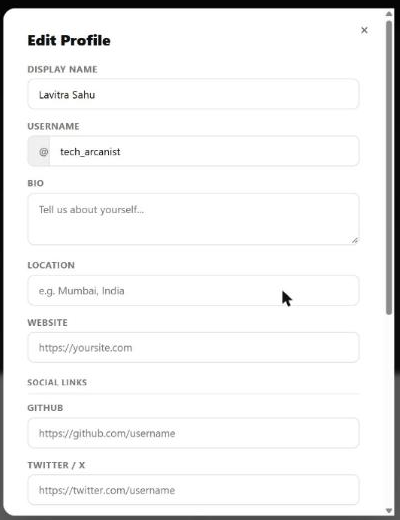
- Sign-in: Google, or email and password (8 or more characters with upper case, lower case, a number and a special character, and a password reset email). The first sign-in opens a short profile set-up: display name, a username of 3 to 20 characters that is checked live for availability, bio and location.
- Create or edit a project: five sections: Project Info (title, description, author, time, category with a custom "Other", difficulty and a course-only tickbox), Cover Image, YouTube Video, Materials and Tools (name, link, price) and Steps. Save Draft, Preview and Publish; publishing needs a title, a description and at least one step.
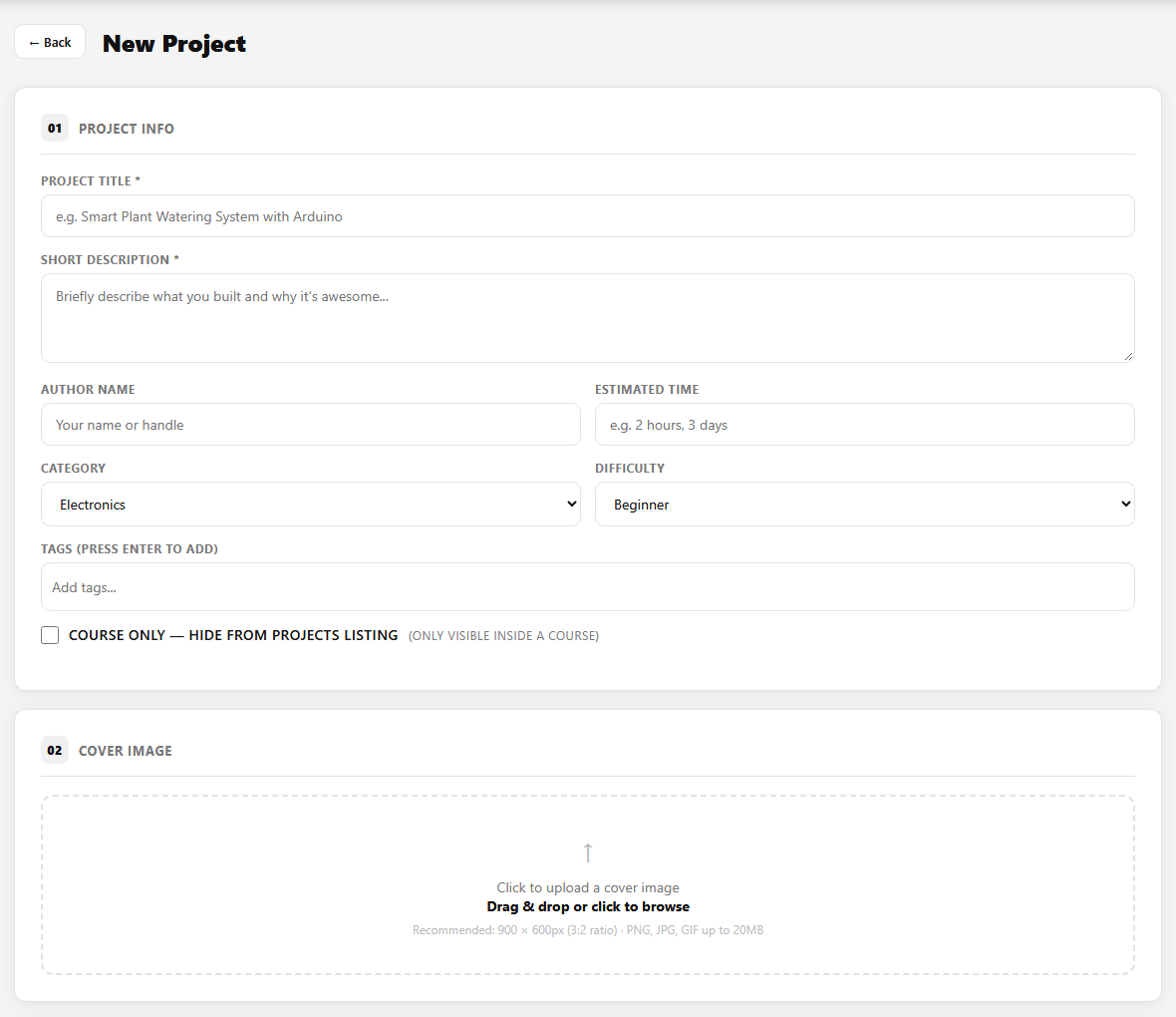
- Cover image editor: drag and zoom (mouse wheel, slider or pinch on a phone) inside a 3:2 frame, with Edit Crop and Replace buttons. The recommended size is 900 by 600 px, and the "How it will look" preview uses the same frame as the real card.
- Course-only projects: one tick hides a project from the Projects page and the home grid so it shows only inside courses.
- Fork: copies another maker's project into a private draft titled "(Fork)" that links back to the original.
- Likes, saved projects, I Made This, difficulty votes, comments and follows, plus a "My Builds" row on the home page for projects that are started but not finished, and Saved and Following pages.
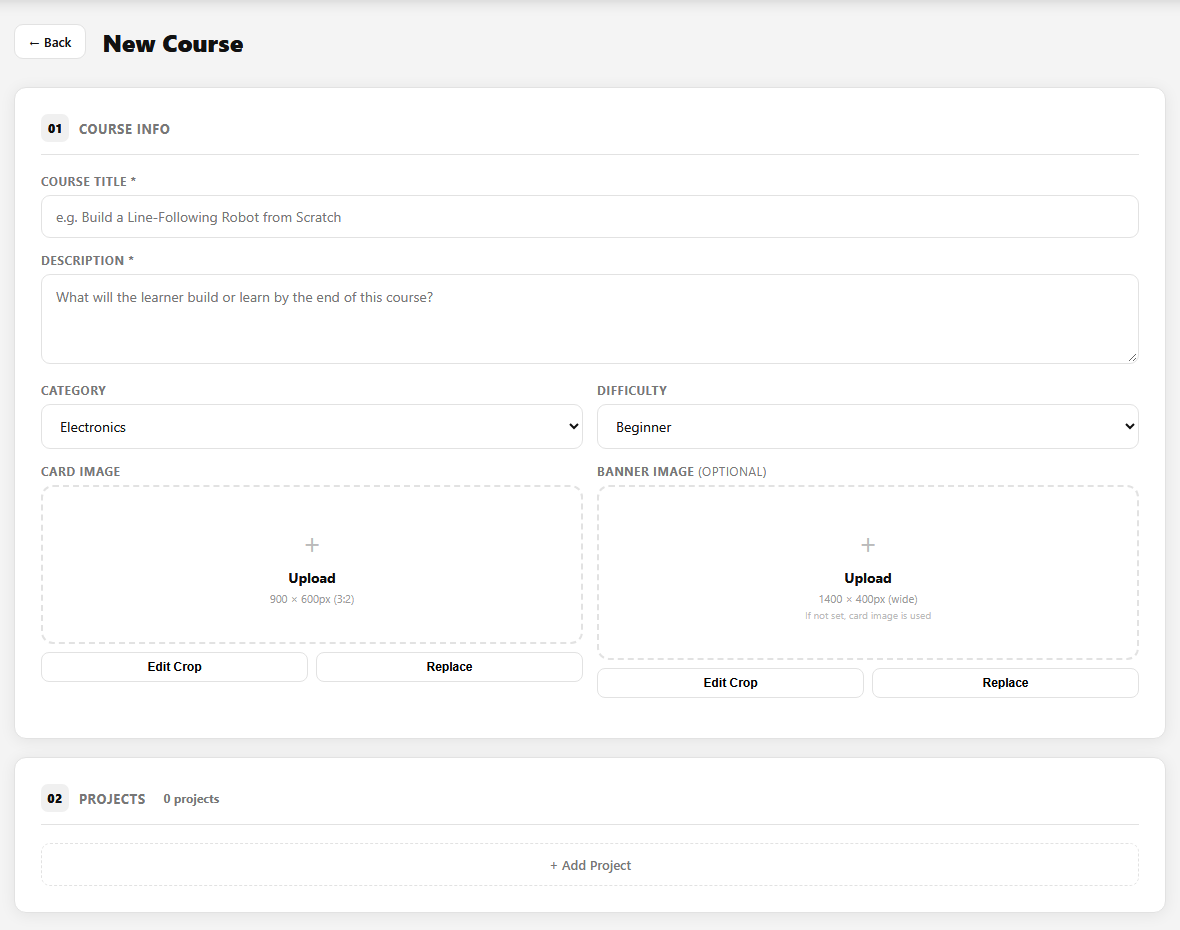
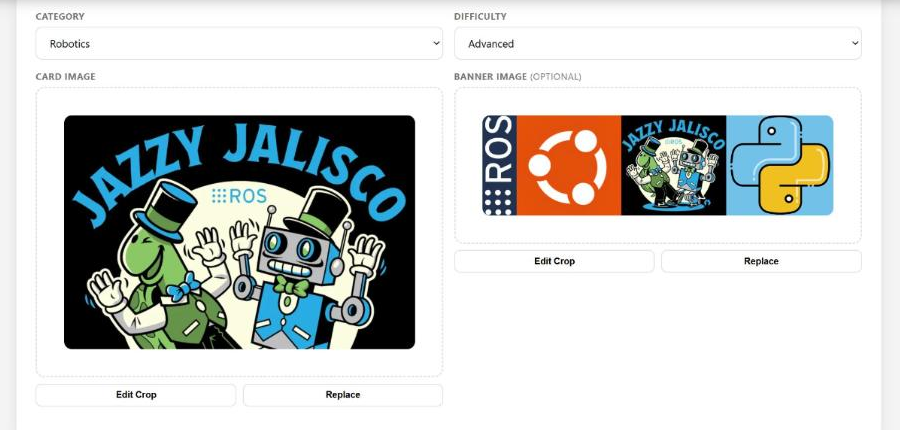
- Create or edit a course: title, description, category and difficulty, a card image (3:2) and a separate optional banner image (wide 7:2) with their own crop editors, then pick projects from a list and reorder them. Save Draft or Publish.
- Badges, awarded automatically: First Project, 5 Projects, 10 Likes, 50 Likes, 100 Views and First Fork.
- Edit profile: name, username, bio, location, website, five social links, skills and photo.
Signed in, the top bar shows the maker's avatar and name, and the pages gain their member controls.

Admin features
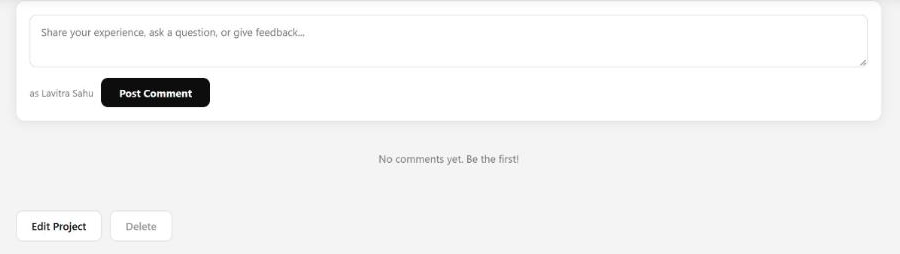
There is no separate admin dashboard. One admin is set by a fixed list of user IDs in the code. For the admin, projects and courses show a Feature or Unfeature button, and the Featured filter then lists the featured ones. Everything else, such as editing and deleting, is limited to the author of each project or course. The admin account is also the author of the one project and course on the site, so it sees both the admin and the author controls.
Data model
Cloud Firestore, 4 groups of data:
| Collection | What it holds |
| projects | Title, description, author, category, difficulty, time, tags, materials (name, link, price), steps (title, content blocks, images, files), cover, YouTube link, course-only flag, published and featured flags, likes, views, made-it count, difficulty votes, comments, the project it was forked from, dates |
| courses | Title, description, category, difficulty, author, card image, banner image, the ordered list of project IDs, published and featured flags, date |
| userProfiles | Display name, username, bio, location, website, five social links, skills, photo, badges, follower count, date |
| users, private state | One private document per user: likes, saved projects, projects marked as made, finished steps for each project, difficulty votes, who they follow |
Problems solved
Filters that fit a phone
The first mobile toolbar wrapped into many rows and pushed the projects off the screen. A bottom sheet was tried and rejected. The final design keeps the full toolbar on desktop and uses scrolling category chips plus a full-screen filter panel on phones and tablets, in the site's own black, grey and purple palette (a first version borrowed another site's yellow and was redone).
Where "phone" ends
On a tablet-sized window the desktop bar showed with the Sign In button cut off. The breakpoint moved from 640 to 900 and finally to 1024 px, with a separate two-column grid for tablets.
A slow first load
Loading projects and courses together, before sign-in finishes, a 5 minute browser copy of the list, Firestore's offline cache, skeleton cards instead of a spinner and lazy images made the page feel faster. No before and after timing was measured.
Projects that belong only inside a course
A course is a step-by-step guide, so its projects should not always appear in the public list. A "course only" option hides a project from the normal lists while courses can still include it.
A crop frame that did not match the card
The cover editor frame was 2:1 while the cards used a fixed height, so an image designed at the recommended size ran out of the editor and the preview did not match the published card. The editor, the cards, the previews and the recommended size now all use 3:2. The course banner got its own 7:2 editor, and both course images can be re-cropped.
Losing work if the site breaks
Export and Import turn a project into a file the author keeps, so a project can be rebuilt from their own copy if anything goes wrong.
Photos without a paid storage plan
Images are stored inside the Firestore documents, so there is no storage service to pay for. The cost is that a project with many large photos can reach Firestore's size limit for one document.
The phone's own share sheet
Where the browser supports the Web Share API, which is mostly on phones, the Share button opens the real share sheet with all the installed apps. Other browsers get a small menu with Copy Link, WhatsApp and X.