Introduction
This is the site this page lives on. In November 2026 I rebuilt techarcanist.com from scratch as a static website with its own local admin, on top of everything my first WordPress portfolio held. Every page is a small folder of files, a Python script turns those files into plain HTML, and a publish button sends the result to GitHub Pages, with no WordPress plan and no server to pay for.
The site holds my projects, my story and my learning library: the ROS 2, PLC, Fusion, FlutterFlow and Onshape series, with interactive lesson visualizers built into the chapters.
What it had to do
- Keep everything from the first site: every project, chapter, image, PDF, video and interactive guide, with nothing loading from the old WordPress address.
- Be easy to restructure: content kept apart from the design, so a page can be reorganised, moved or redesigned without touching the rest.
- Let me edit without code: an editor, drafts, ordering and a live preview, on my own computer.
- Cost nothing to host: free hosting with no limit on how often the site is published.
- Teach well: chapters with interactive visualizers that fit one laptop screen.
The story of the first site, and how its content was carried over, is on its own page: My First Portfolio: The WordPress Site.
Tech stack
| Part | Choice | Why |
| Content | One folder per page: item.json (title, summary, cover, type, categories, order, status) and body.html; site-wide data in site.json | Plain files are easy to back up, compare and restructure |
| Build | Python with Jinja templates (tools/build.py) | The whole site is generated in one run, with no database |
| Admin | A small Python server on 127.0.0.1 with a JavaScript editor | Only my computer can reach it, so it needs no online login |
| Hosting | GitHub Pages, with the domain pointed from WordPress.com DNS | Free, and no limit on publishes |
| Videos | Unlisted YouTube uploads from the admin | Keeps the published site small |
| Look | Hand-written CSS and JavaScript, a dark blue theme with a green-on-black second theme | The same colours as my interactive guides |
How it works
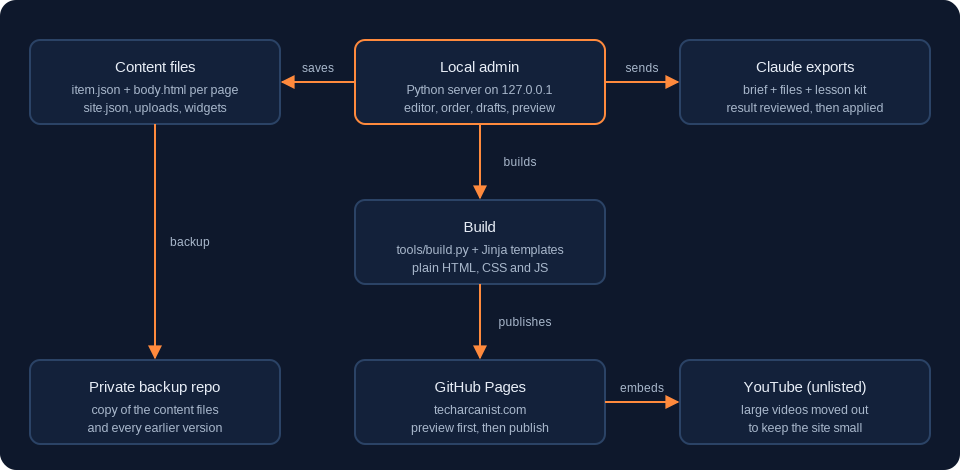
- Edit: the admin opens a page, I change it in the editor and save. The previous version goes into a history folder first.
- Preview: every other address on the admin server is a live preview of the site, drafts included.
- Build:
build.pyreads every folder and writes the public pages, the Work grid, the course indexes, the search data and the home page counters. - Publish: a first step builds the site and lists the pages that changed since the last publish; a second step pushes that exact version to GitHub and watches the deploy until it succeeds or fails.
Public features: what any visitor sees
Home page
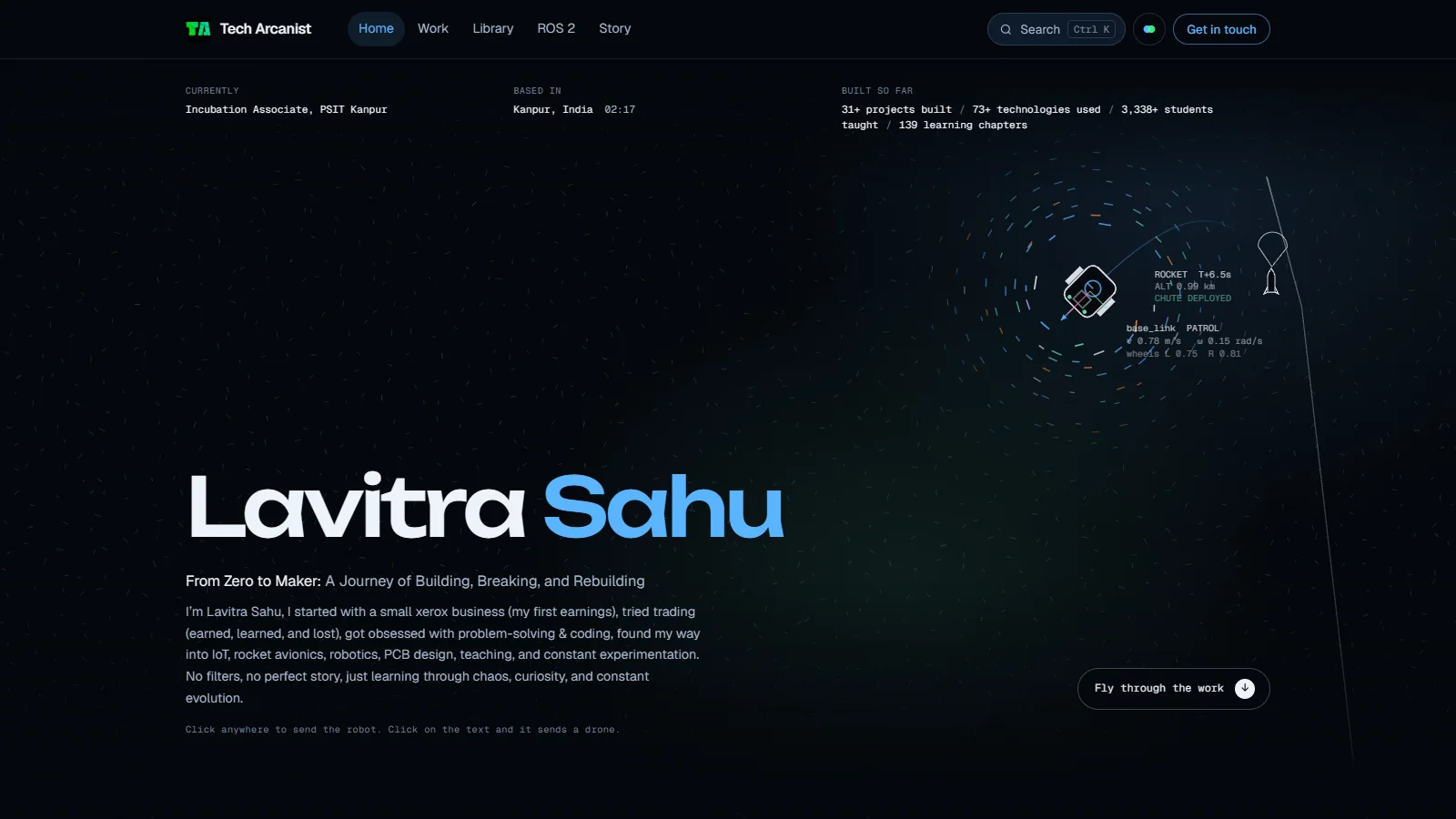
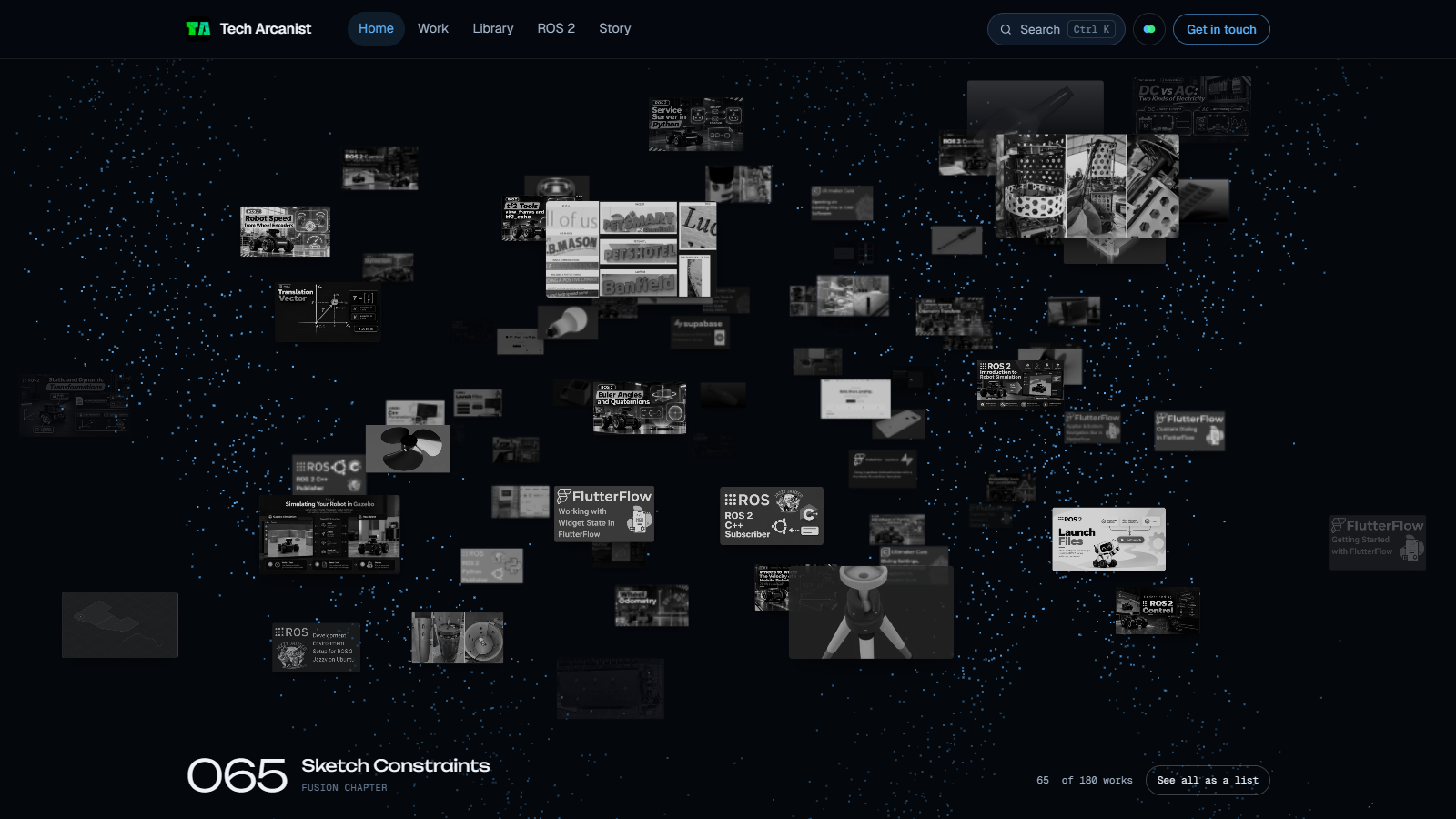
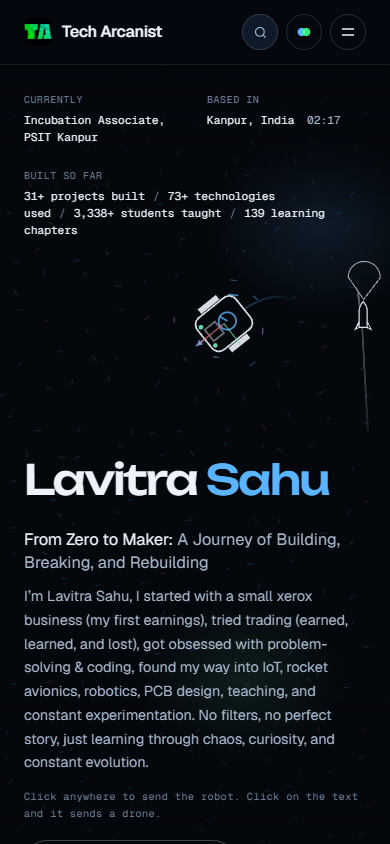
The name in large type, a particle field with a small self-driving robot (a click sends it on a planned path, a click on the text launches a drone), my story, teaching, awards, tech stack and contact. The counters (projects, technologies, chapters) are worked out by the build, so they stay correct without being edited by hand.
Work and Library
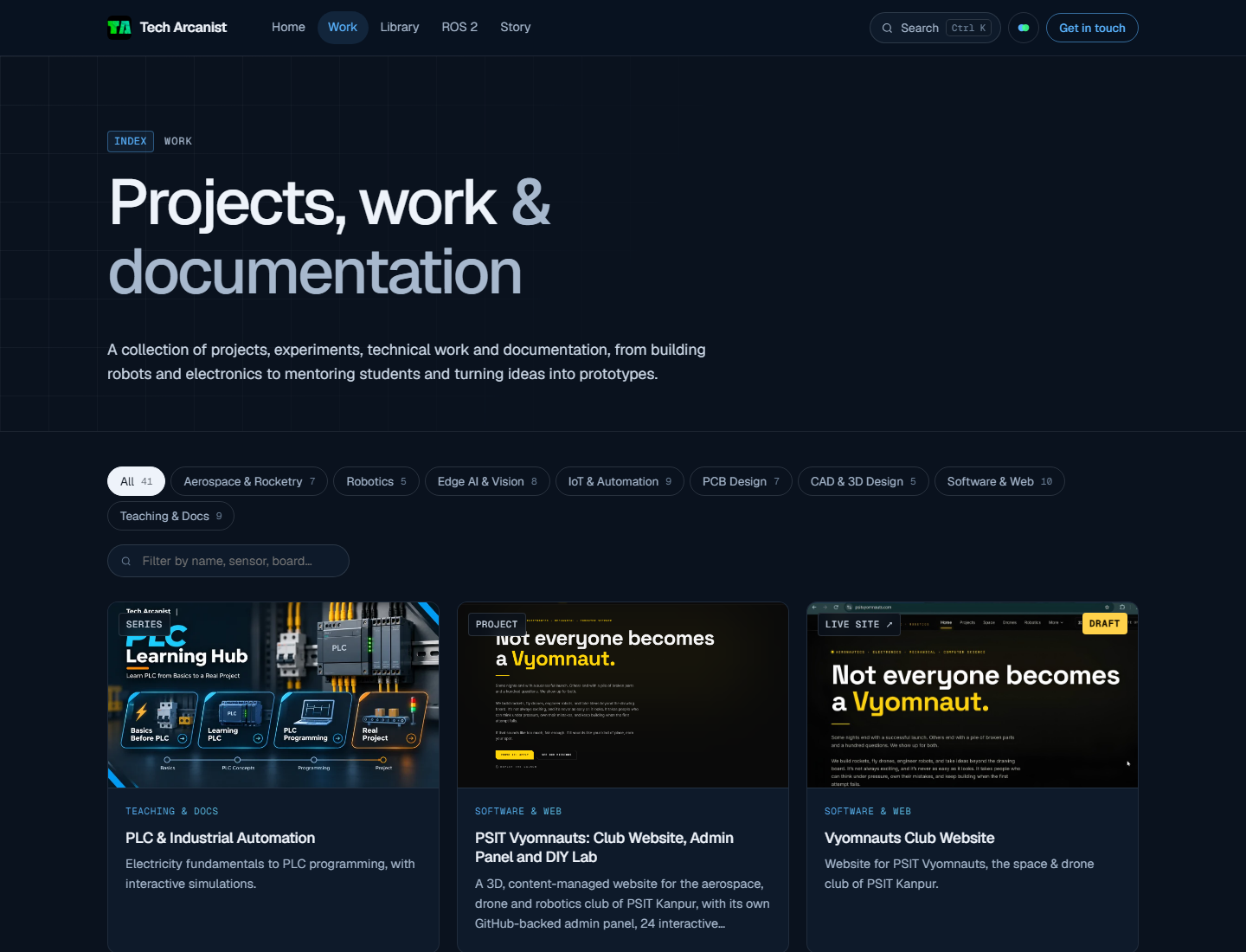
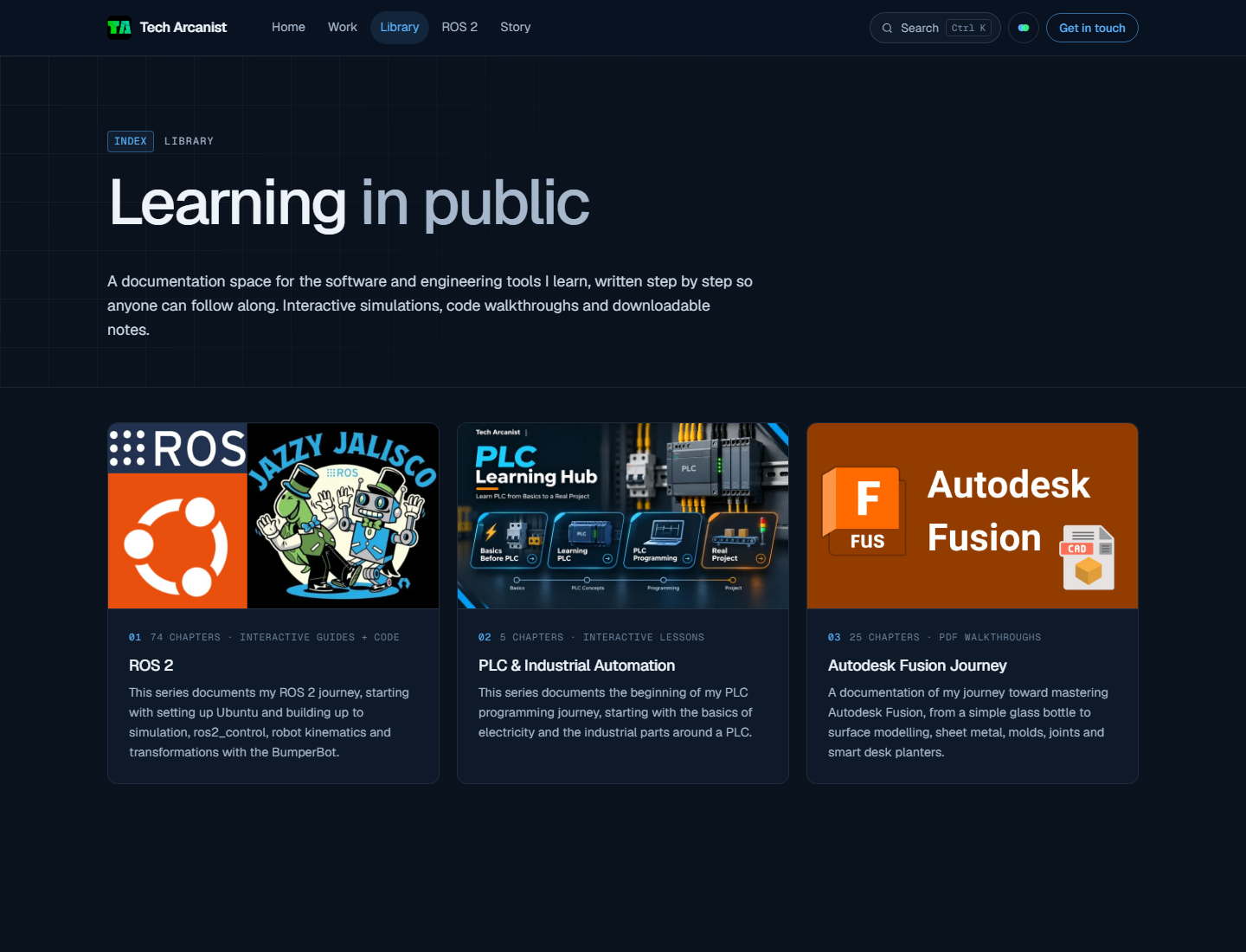
The Work page is a filterable grid of projects, link cards and course cards in an order set from the admin. The Library lists the learning series with a picture card for every chapter.
Chapters with interactive lessons
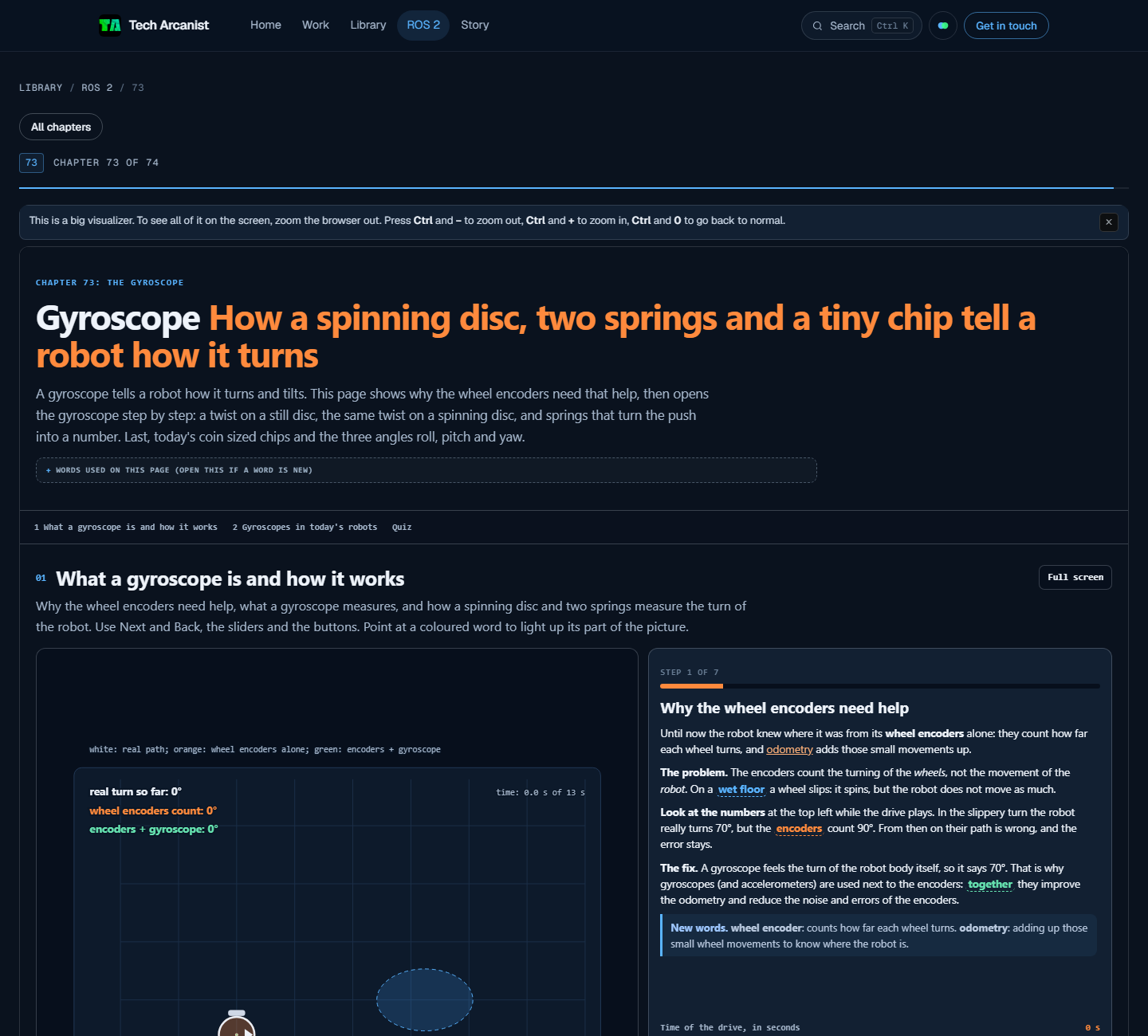
Chapters can hold code blocks with line numbers and colours, PDFs, videos and visualizers. A visualizer opens inside its section, takes on the colour of its section card, and has a Full screen button. Newer ROS 2 chapters are whole interactive lessons: steps with Next and Back, sliders, a quiz and a word list.
Small things that help
- Search across the whole site with Ctrl K.
- Two themes: dark blue and green on black.
- Every page checked for sideways scrolling at six screen widths, from 320 to 1920 pixels.
- A privacy page that explains the little that happens on a visit.
Admin features
The admin is a small program that runs only on my computer, at a local address, so nobody else can reach it. Every page of the site is written, ordered, checked and published from here, without touching code.
Work: the order of the grid
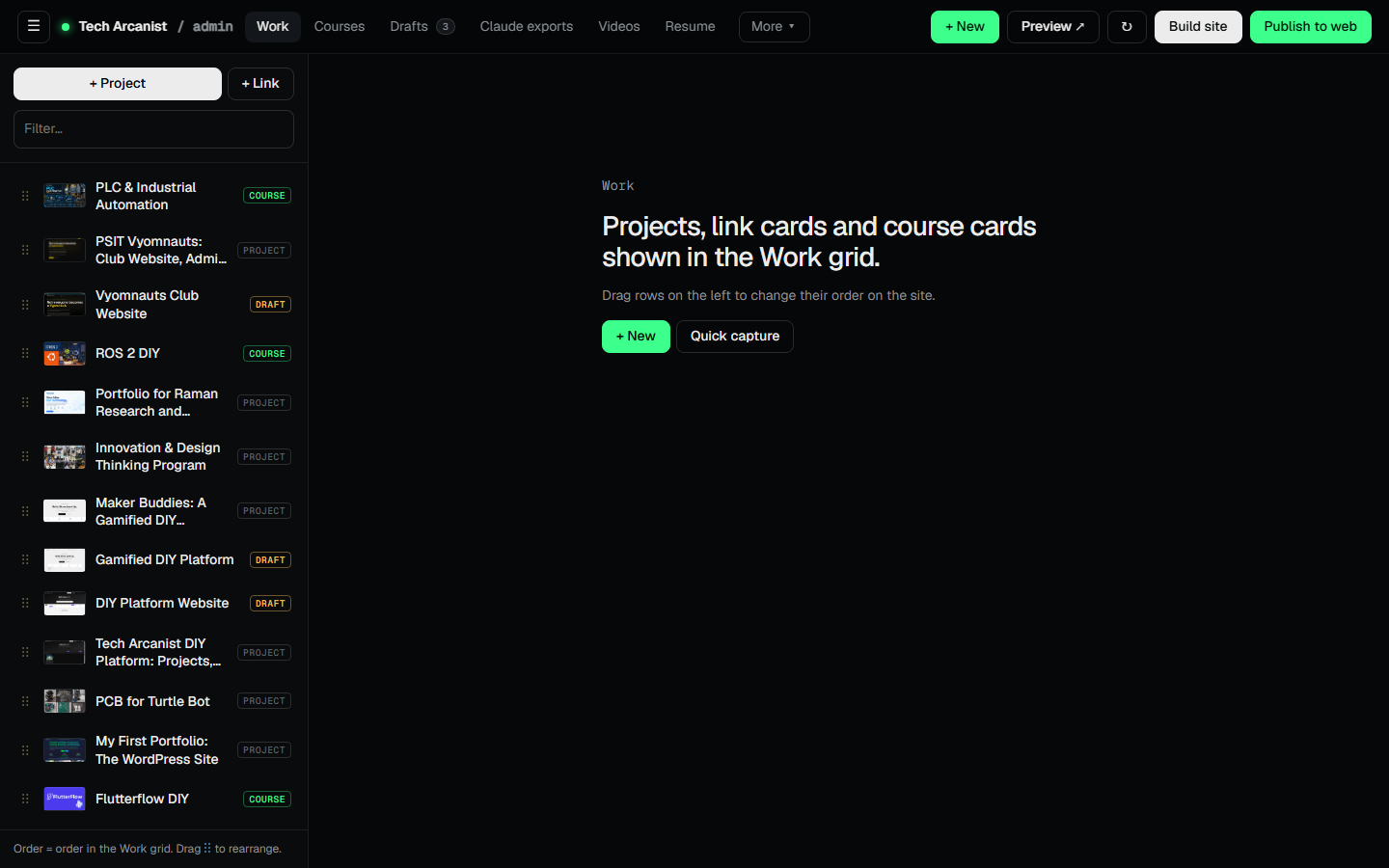
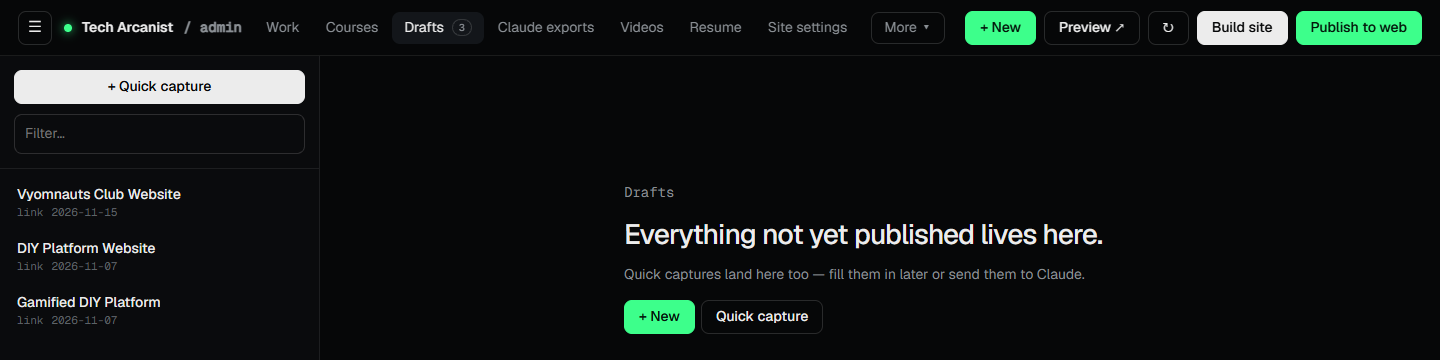
One list holds every project, link card and course card. Dragging a row changes its place on the Work page and on the home page. Each row shows whether it is a project, a course or a draft.
The editor
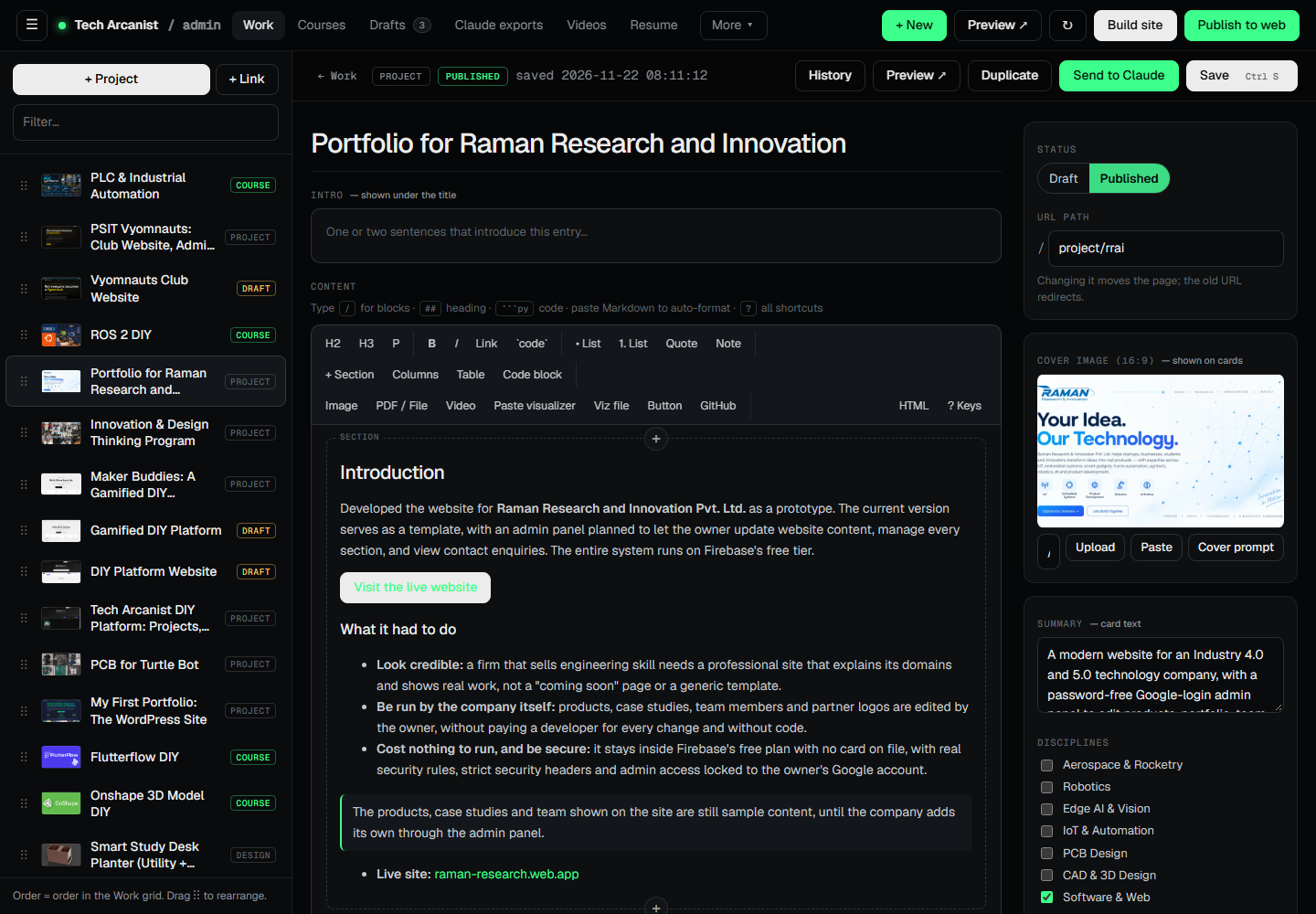
- Blocks: sections, columns, tables, code blocks, notes, quotes, images, PDFs and files, videos, visualizers, buttons and GitHub links, plus a raw HTML mode.
- Fast input: screenshots paste straight in with Ctrl V, a slash opens the block list, and Markdown pasted in turns into formatted text.
- Side panel: Draft or Published, the address of the page (changing it leaves a redirect behind), the 16:9 cover image with Upload and Paste buttons, the card summary and the categories.
- Images: an image can be cropped in place, and the original file is kept.
Courses: chapters in order
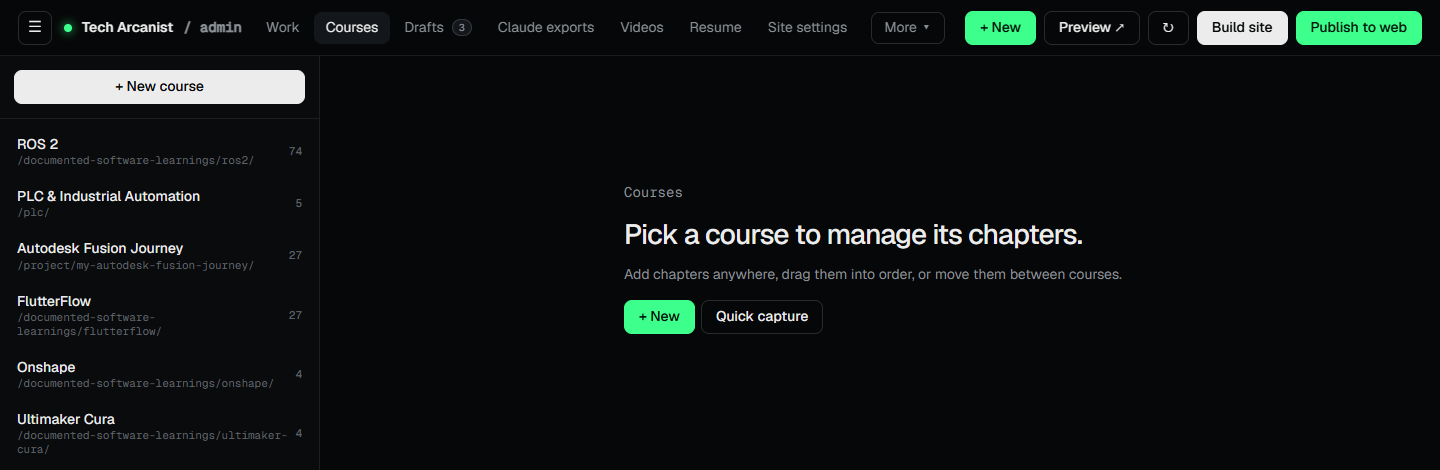
Each learning series has its own list of chapters. A chapter can be added at the end or after any other chapter, dragged into a new place or moved to another course, and the chapter numbers update by themselves.
New entries and quick capture
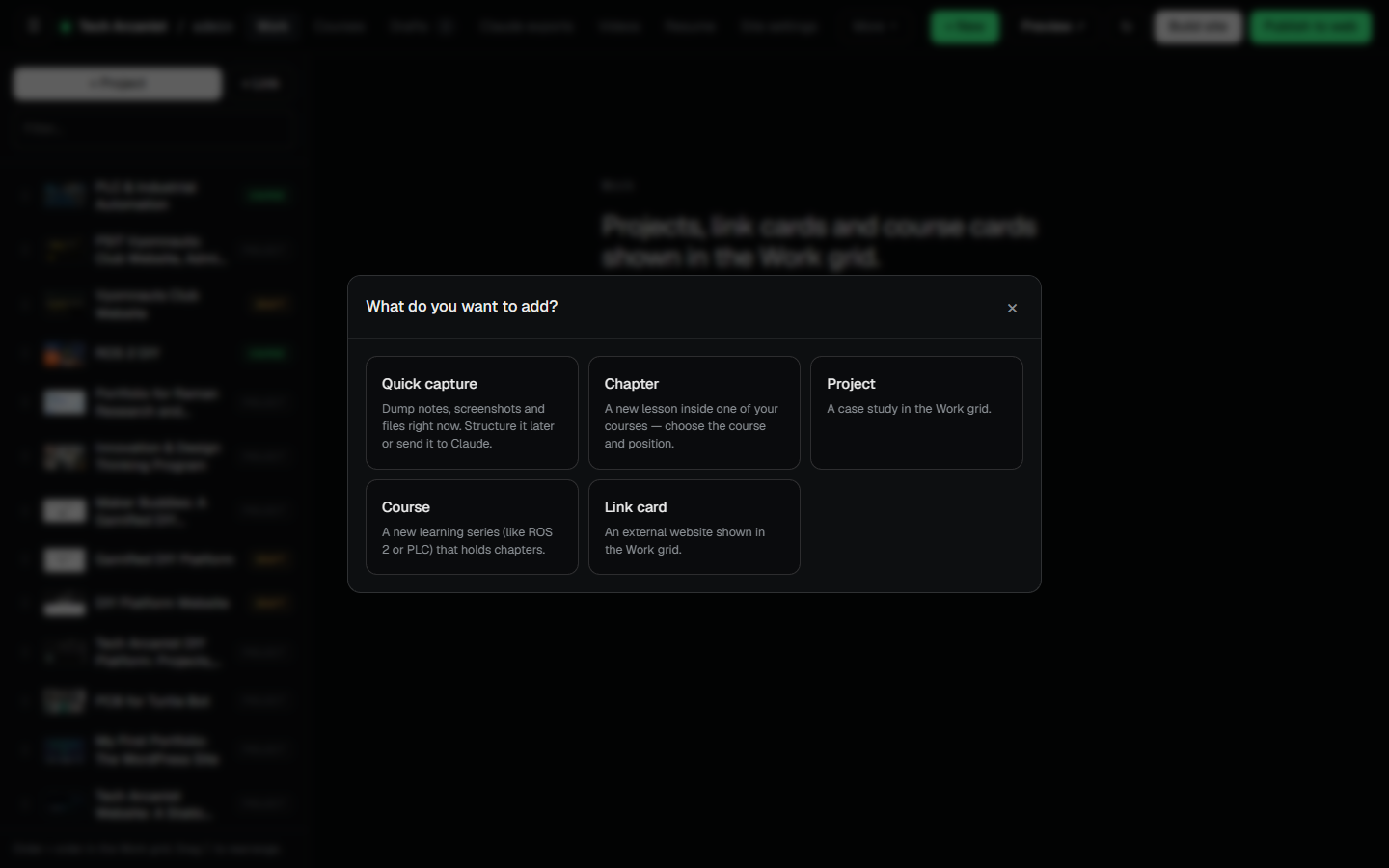
The + New button asks what to add (a quick capture, a chapter, a project, a course or a link card) and then where it goes. A quick capture is an instant draft for rough notes and screenshots taken while learning; it is tidied up later.
History and safety
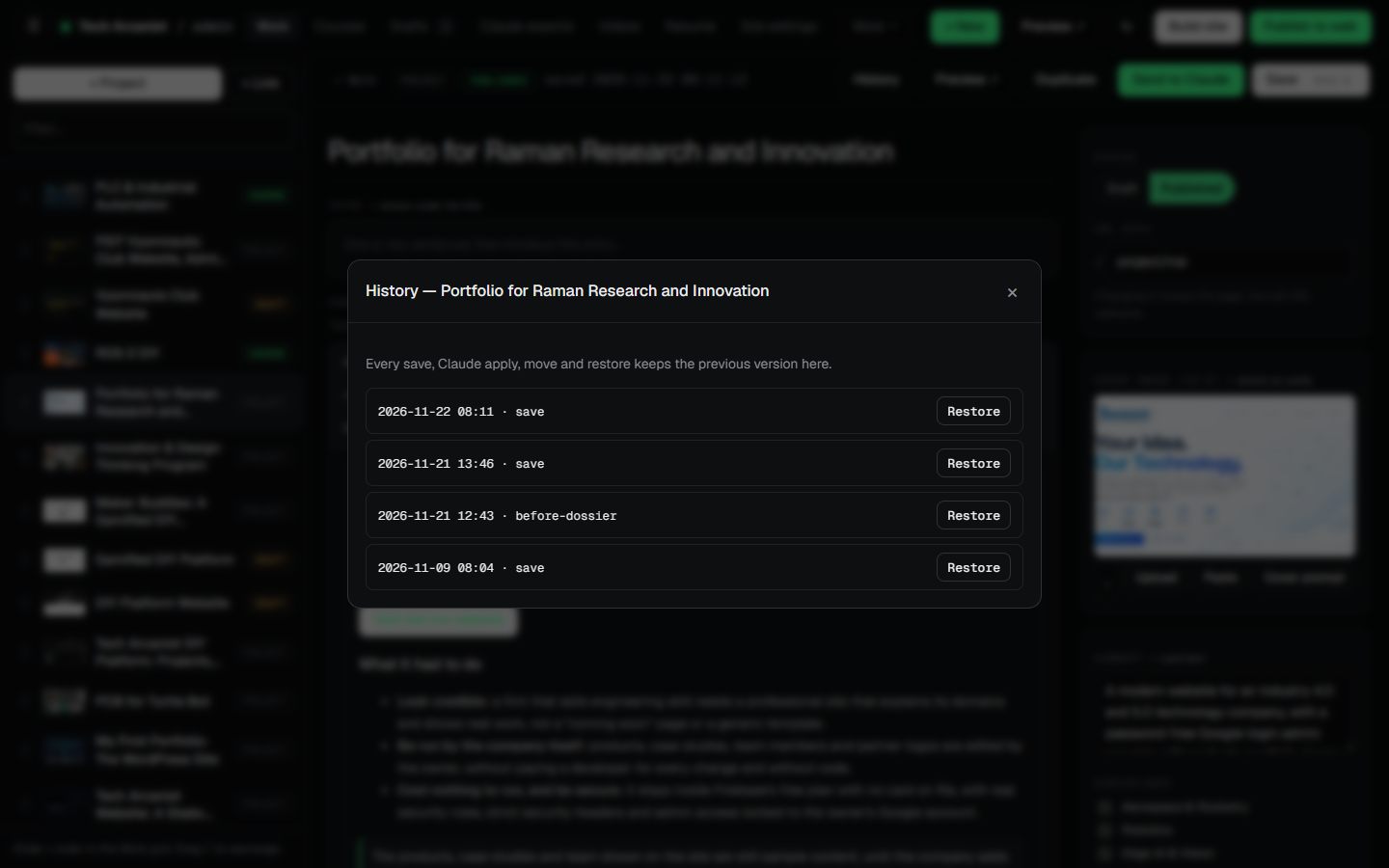
- Every save, apply, move and restore keeps the previous version, and any of them can be restored with one click.
- Deleted pages go to a trash folder and can be brought back.
- If a page was changed elsewhere after it was opened, saving warns before it overwrites the newer version.
Site settings
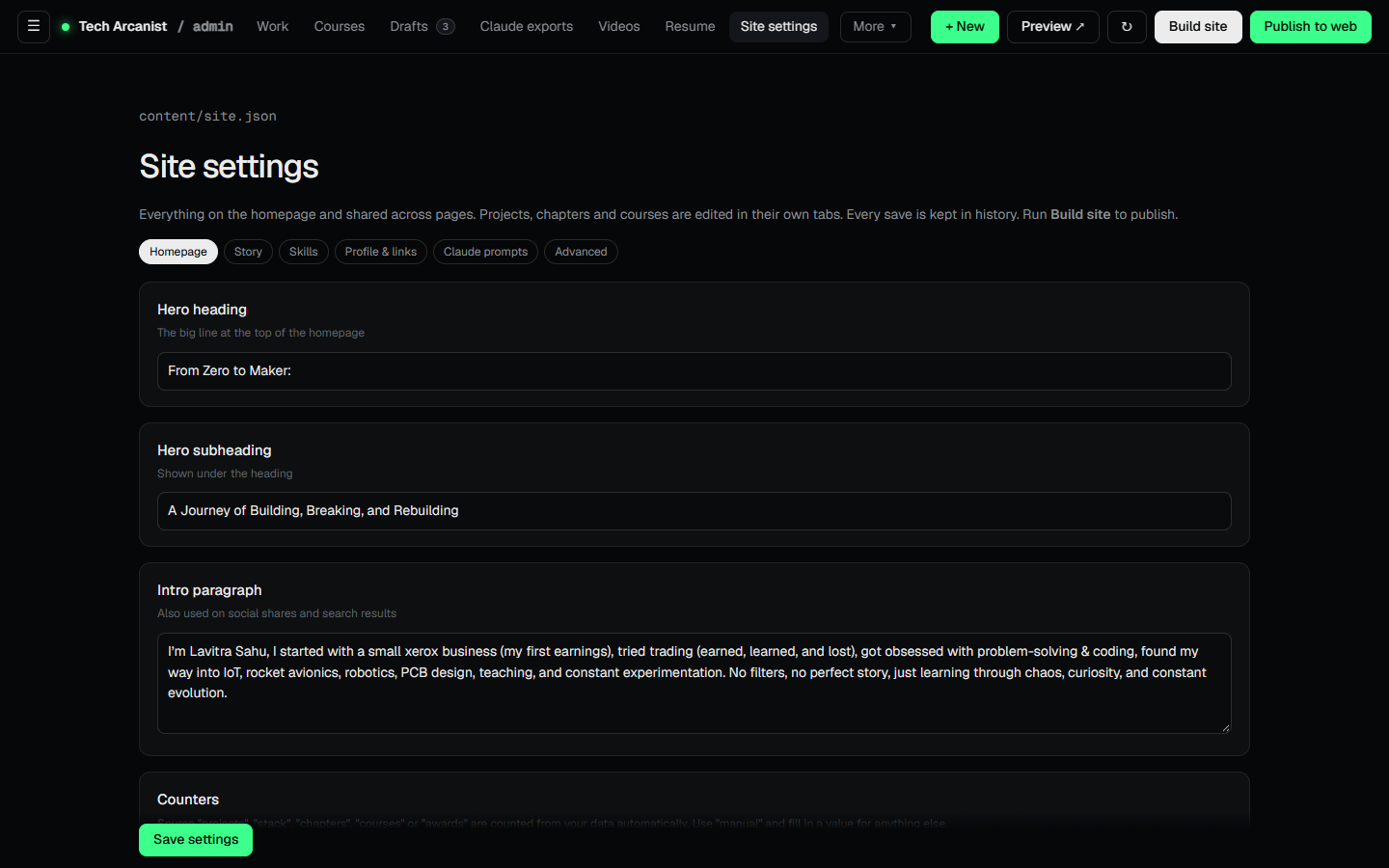
The home page text, story, skills, profile links, counters and the Claude templates are edited in forms, not in code.
Videos
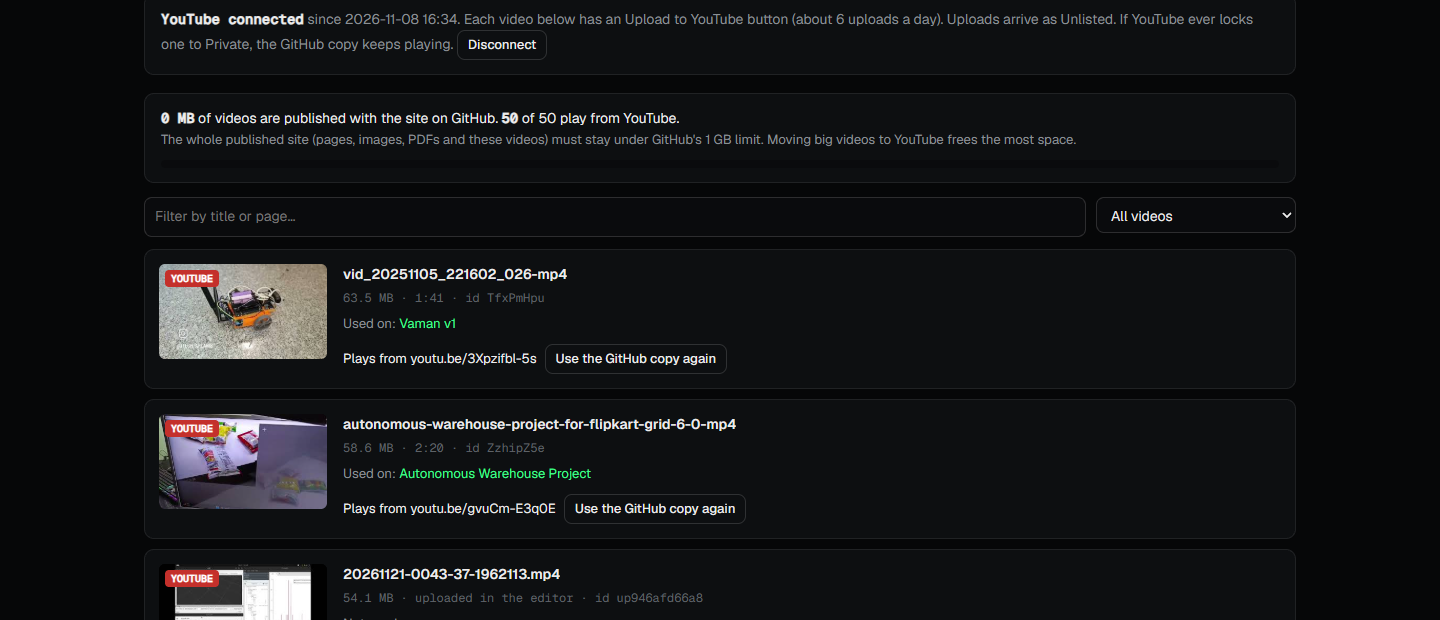
Each video on the site has an Upload to YouTube button. The upload goes in as unlisted, and the page then plays the YouTube copy instead of carrying the file. If YouTube ever locks a video, the copy on GitHub can be switched back on.
Publish and earlier versions
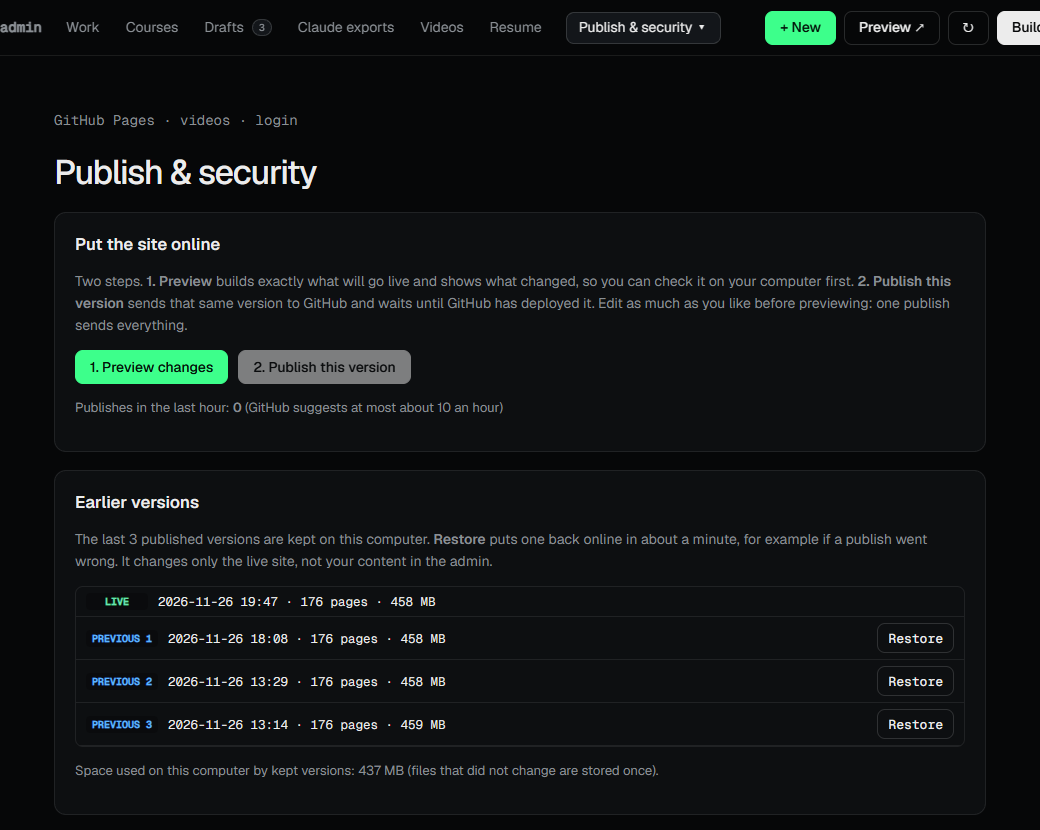
Publishing has two steps. Preview changes builds exactly what will go live and lists the pages that changed. Publish this version sends that same version to GitHub and waits until GitHub has deployed it. The last three published versions stay on the computer, and Restore puts one back online in about a minute if a publish goes wrong.
Send to Claude and the lesson kit
Notes captured while learning are rough. The admin packs a page (text, images, files and visualizers) into an export folder with a short brief, and Claude writes a restructured version into a result folder. The admin shows the old and new versions side by side, and only an Apply click changes the page.
- Templates: restructure a page, add visualizers, build a code visualizer, build a whole-chapter lesson, or fix one visualizer.
- The lesson kit: every export carries a kit with the shared lesson engine, tests that open the lesson in headless Chrome at laptop and phone width, and a check of the whole result.
- Context: each export also lists the sections of earlier chapters with exact links and the closest earlier visualizers, so a new chapter links back to what came before and reuses what already works.
- House rules in every brief: plain words, no second-person wording, no dashes, no emojis, and every visualizer fits one laptop screen.
Problems solved
Visualizers that came out blank
In the wide chapter layout, visualizer frames grew to 6000 pixels wide and looked empty. A grid column limit fixed it.
A white button on a white card
Content buttons were invisible on light cards, so they became accent blue with dark text.
A visualizer in the wrong colour
The site reads the background of each visualizer and paints its frame to match. The whole section card takes the colour only when the visualizer is the section; otherwise only the visualizer does.
Too big for free hosting
The site with all its videos came close to the size limit of GitHub Pages. Moving the large videos to unlisted YouTube uploads made room, and the publish step now warns before the site gets too large.
A publish with mismatched code
Once, a publish ran with an old build script and new templates, and the library list on the home page was empty for a few minutes. The publish step now reloads the build script whenever it changes.
File names that differ only in capital letters
Windows treats Image.png and image.png as one file, GitHub does not. The publish step now warns about such links.
Milestones
- Everything from the first site carried over: 870 images, 63 PDFs and 37 videos, with nothing loading from the old address.
- 445 code blocks on 25 pages rebuilt with line numbers and colours during the move.
- 8 November 2026: the domain switched from WordPress to this site.
- Since then, every new project, chapter and visualizer is added through the admin, and the counters on the home page update on their own.
What comes next
- An online admin on a free cloud server, with a password and a one-time code, so pages can be edited away from my computer. It is ready in code but waits for server capacity.
- A script in the lesson kit that carries a code visualizer over to the next chapter's changed lines on its own, instead of by hand.